
Streams
A stream is a single field, from one row of one table, in one account, sampled as a live time series. Streams are the source for the Quotes Bar and for the line and bar charts on the Dashboard.
The page has two tabs.
- Streams creates, records, and deletes streams.
- Symbols adds contracts that no account holds, so they can be streamed like any other.
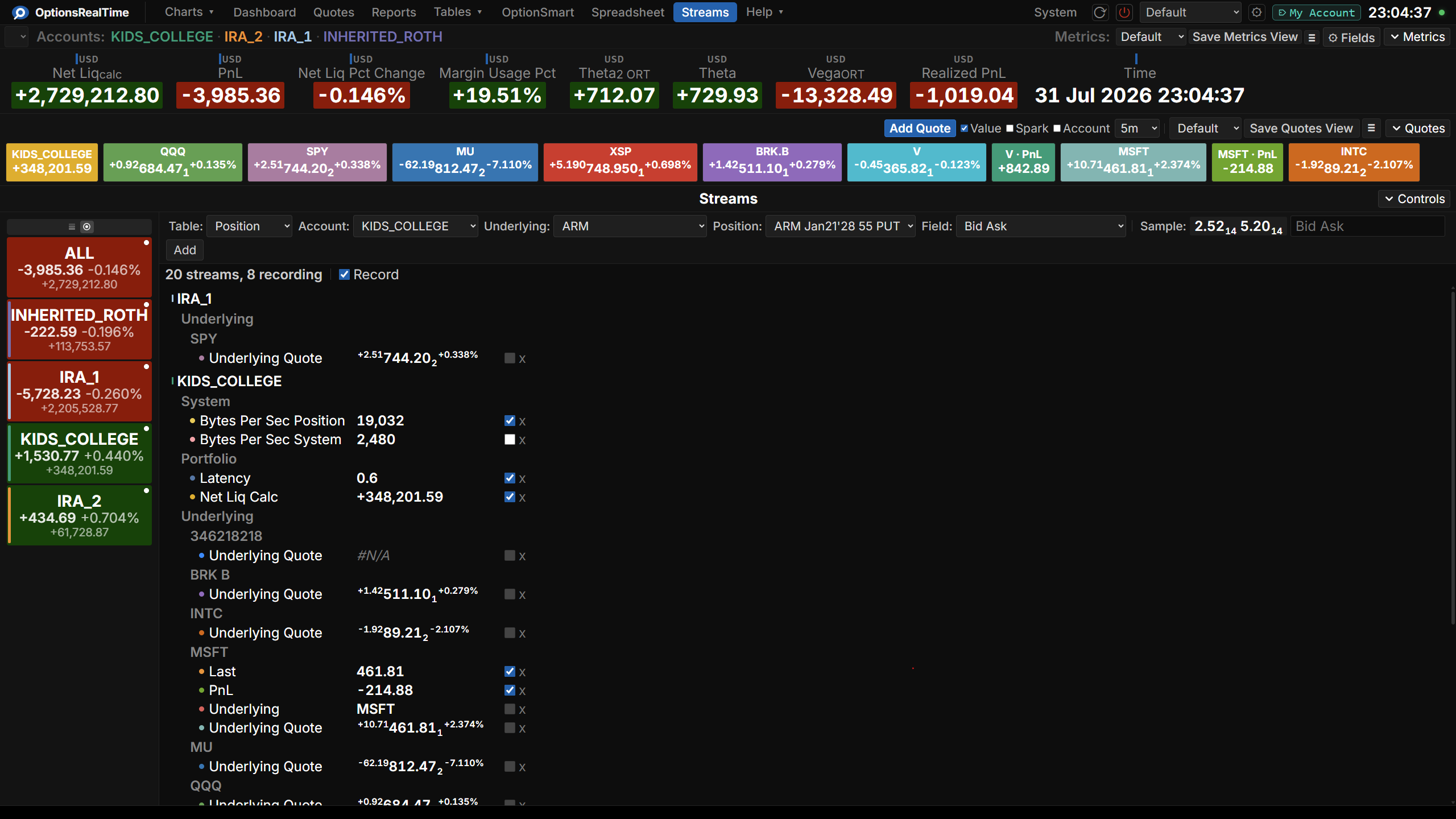
Creating a stream
Section titled “Creating a stream”The Controls row at the top of the page builds one stream at a time. The dropdowns narrow the selection from left to right:
- Table: Position, Underlying, Portfolio, or System. This choice determines which dropdowns follow.
- Account: the account the value is read from.
- Underlying and Position: the row within the table. The Underlying table asks for an underlying. The Position table asks for an underlying and then for one contract within it. The Portfolio and System tables hold one row per account, so neither asks for a row.
- Field: the field to sample. The available fields are those of the selected table.
- Sample: the current value of the selection, shown before the stream is created.
- Name: the label used for the stream in the list, the Quotes Bar, and the charts. Left empty, the field name is used.
- Add: creates the stream.
The Controls row can be collapsed with the Controls chevron at the right of the page.
Contracts added on the Symbols tab appear in the Underlying dropdown, under every account.
The stream list
Section titled “The stream list”Below the controls, every stream is listed and grouped by account, then by table, then by the row it reads: an underlying symbol, a contract, or the account itself for the Portfolio and System tables.
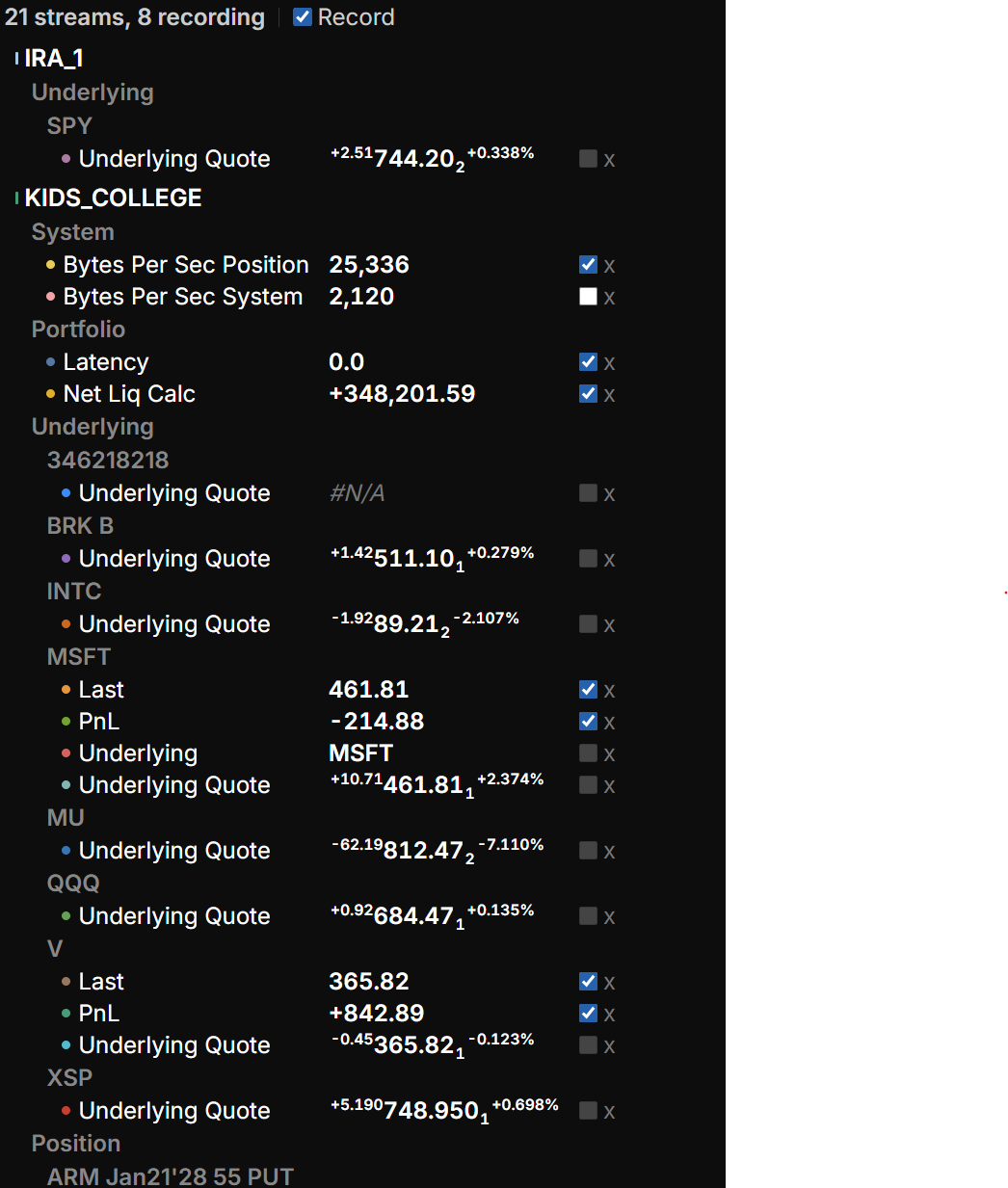
Each row shows:
- A colored dot, the stream’s color.
- The field name.
- The current value, updated live.
- A Record checkbox.
- An x that deletes the stream.
The line above the list gives the totals, such as 22 streams, 10 recording. The Record checkbox next to it turns recording on or off for every stream at once.
Recordable fields
Section titled “Recordable fields”A field has to be a single number to be recorded. Numeric fields such as PnL, Last, Latency, Net Liq Calc, and Implied Vol ORT can be recorded. Fields that are text, such as Underlying, and fields that combine several values into one display, such as Underlying Quote, cannot; their Record checkbox is disabled.
Every stream displays its current value in the list and can be added to the Quotes Bar. Only recordable streams keep history, so only they carry a sparkline and appear in the Dashboard chart pickers.
Stream color
Section titled “Stream color”Each stream is assigned a color, used wherever the stream appears:
- The dot in the stream list.
- The quote in the Quotes Bar.
- The line and its Y axis in a line chart.
- The bar in a bar chart.
The same color identifies the stream in each location.
Recording
Section titled “Recording”A stream displays its current value whether or not it is recording. Recording adds the history behind that value: the time series a sparkline or a chart draws from.
- Sampling resolution is one second. The recorder captures reference values, not individual ticks.
- A point is stored when the value changes, plus a confirmation point every minute so a flat value still renders as a line.
- A short interruption does not break the line. If the recorder goes quiet for more than five seconds, from a background tab or a slow page load, the last value is carried forward flat, because the value held while the recorder was not watching.
- A silence longer than five minutes breaks the line instead, and a gap is drawn rather than a segment across the missing interval. An overnight gap renders as a break, not a move, since bridging it would draw a move that never traded.
- A field that stops arriving, because the account was removed or the contract rolled off, records a gap rather than a stale value.
- History is retained for 12 hours per stream.
- Recording continues across navigation. The recorder keeps sampling while another page is open.
- Numeric streams are published to NATS JetStream once a second while recording, the same rate they are sampled, so the history is shared by every browser on the network and survives a restart. Replayed points and live points are the same resolution and can be read as one series.
Symbols
Section titled “Symbols”Streams normally read contracts your accounts already hold. The Symbols tab adds contracts they do not.
Anything IBKR quotes can be added. Stocks, options, futures, options on futures, bonds, currencies, and indices all work. A contract added here is quoted, charted, and recorded the same way a held position is. You do not have to trade it, and you do not have to open a paper position to see it.
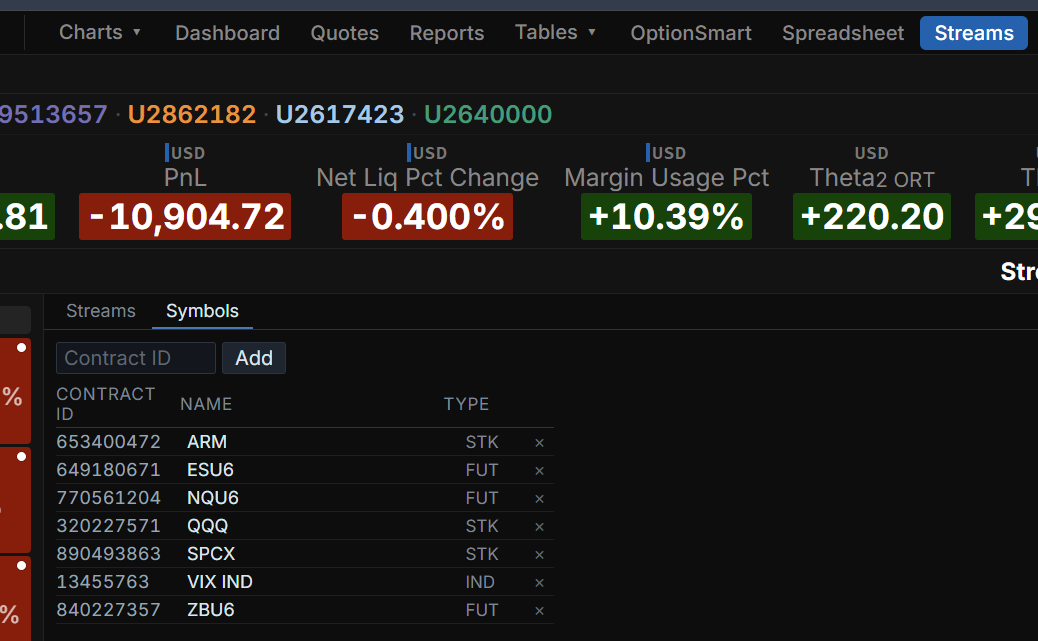
A contract is identified by its IBKR contract ID. That number is the only thing you enter. The name and the type come back from IBKR.
The list is loaded at startup and on every refresh, in addition to the contracts your positions already require. Entering a contract ID for something you already hold is safe. Only contract IDs that are not already subscribed are requested.
Adding a contract
Section titled “Adding a contract”- Type the contract ID into the Contract ID field.
- Click Add.
The row appears at once. The Name and Type columns fill in a second later, when IBKR answers.
The contract is added to every account. It appears in the Underlying dropdown on the Streams tab under each one, so you can create the stream from whichever account you prefer.
Reading the list
Section titled “Reading the list”Each row shows:
- Contract ID: the number you entered.
- Name: the contract name from IBKR, such as
CLU6or646136XS5 5.754 12/15/28. - Type: the security type, such as
STK,FUT,IND,BOND, orCASH. - An x that removes the contract.
A - in the Name column most likely means the contract ID is invalid, as its name cannot be found. If so, delete the row with the x.
Rows without a name are appended to the end of the list.
Removing a contract
Section titled “Removing a contract”Click the x on the row. The contract is removed from the list at once.
Its quote continues until the Account Analyzers restart.
Finding a contract ID
Section titled “Finding a contract ID”- Find the instrument in Trader Workstation and add it to a watchlist.
- Right-click the row and choose Financial Instrument Info, then Description.
- Read the Contract ID field.
IBKR also publishes a contract ID lookup on its website.
Watching an index future overnight
Section titled “Watching an index future overnight”A worked example, using the September E-mini Nasdaq future.
- Find the future in Trader Workstation and read its contract ID.
- On the Symbols tab, enter that ID and click Add. Wait for the name to appear.
- On the Streams tab, choose the Underlying table, any account, the new contract, and the Underlying Quote field. Click Add.
- In the Quotes Bar, click Add Quote and choose the new stream.
The quote is now on every page. To chart it instead, choose a numeric field such as Last in step 3, record the stream, and add it to a line chart on the Dashboard.
Where streams appear
Section titled “Where streams appear”A stream is created once and used in as many places as needed:
- Quotes Bar: Add Quote in the Quotes Bar lists the existing streams and adds the chosen one as a quote. The bar is visible on every page.
- Dashboard: Add Line Chart and Add Bar Chart list the existing streams and plot the chosen ones.
Deleting a stream removes it from the quotes and charts that use it.