
Rover Account Analyzer Launcher and Monitor
Rover is the central hub for managing connections between Interactive Brokers TWS instances and the OptionsRealTime data stream. It launches and monitors account analyzer processes that feed real-time portfolio data to all connected clients, including the web browser UI and Excel.
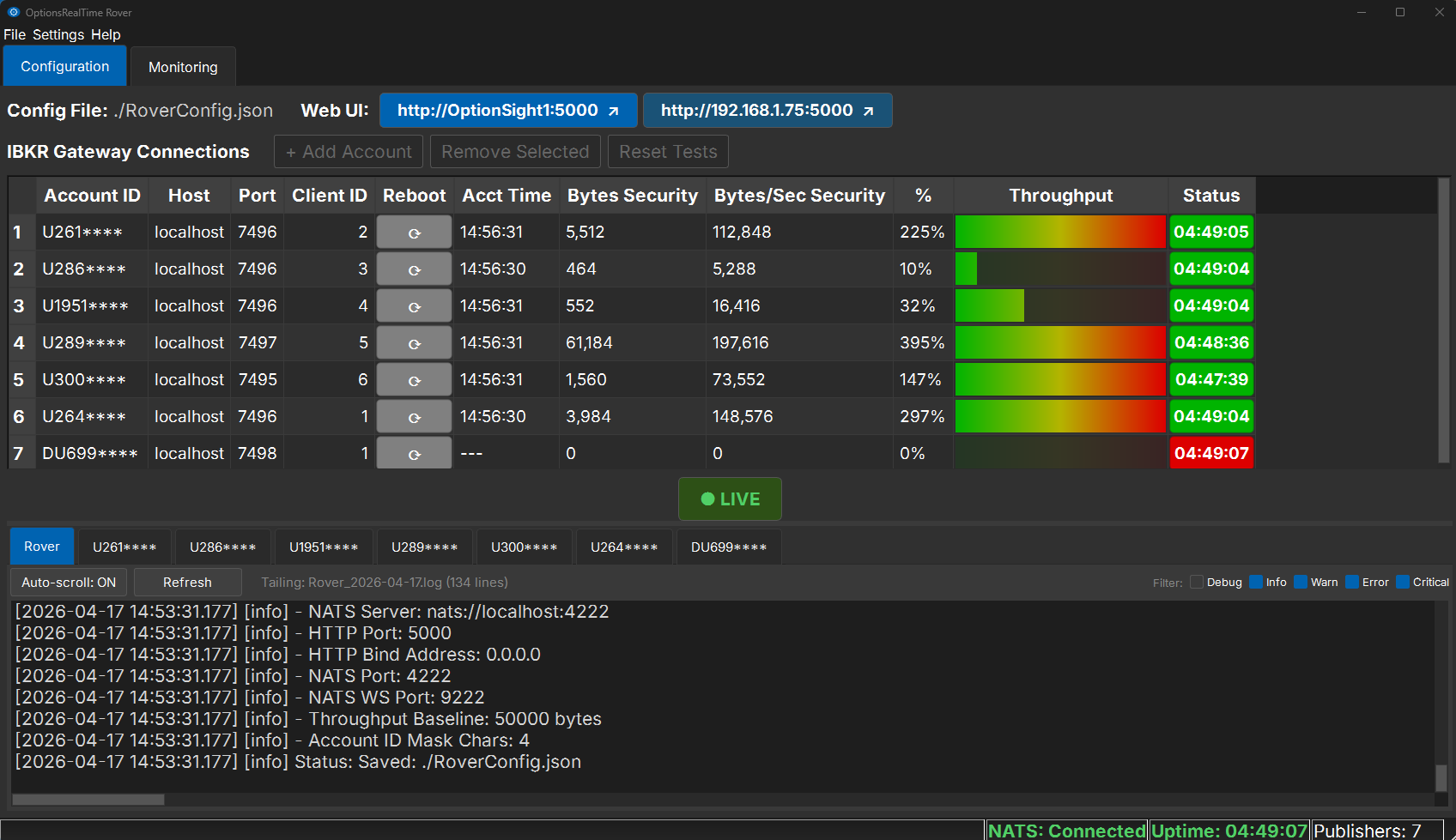
Rover with every Developer Tool enabled: the Configuration and Monitoring tabs, Client ID and Restart columns, throughput columns, and the log pane. The default view is more minimal (see below).
Overview
Section titled “Overview”Rover manages the complete lifecycle of account analyzer processes. Each analyzer connects to a TWS Desktop or Gateway instance and streams portfolio data over NATS to any listening client. A single Rover instance can manage multiple accounts across multiple TWS installations, whether those TWS instances are running locally or on remote machines. Beyond launching analyzers, Rover continuously monitors each process. If any analyzer dies due to data disconnections or other failures, a new instance is immediately spawned, reconnecting to TWS, downloading all positions, subscribing to feeds, and resuming analytics streaming.
Default View
Section titled “Default View”Rover’s default view is intentionally minimal. Traders see only what they need: a connections table, a Web UI button, and live status indicators. Power-user features such as monitoring metrics, log panes, throughput columns, client IDs, and per-row restart buttons are available on demand through Settings > Developer Tools. With none of them enabled there is no tab bar, and the connections table fills the window.
The default view shows:
- Web UI button at the top: opens the OptionsRealTime web UI using the machine’s hostname (e.g.,
http://MyMachineName.local:5000). Designed to be reachable from any device on the LAN that can resolve mDNS names, including Mac and iPhone. - IBKR Gateway Connections table: grouped by TWS session. Each bold TWS App row is one TWS Desktop or Gateway session, carrying the Host and Port it is reached on, and the accounts served by that session are indented beneath it. Every account row shows TWS App / Account ID, Account Name, Host, and Port. Once the analyzers are running, three live columns replace the setup columns described under Configuration:
- %: current throughput as a percentage of the configured Throughput Baseline
- Data Flow: a live bar visualizing data streaming from that account analyzer to connected clients
- Status: uptime for that analyzer, green while it is connected and streaming, red when it is not
- LIVE indicator: below the table, confirms analyzers are running and streaming.
- Status bar: NATS connection state, application uptime, and accounts connected (e.g.,
Accounts 6/6). The count turns amber when fewer accounts are connected than configured (Accounts 3/6), pointing at a session or account to check.
Configuration
Section titled “Configuration”Account connections are defined in RoverConfig.json (see Rover Configuration for the full schema) and edited in the connections table, which has two levels:
- TWS App rows (bold): one per TWS session, added with + Add TWS App. Each carries the connection the accounts below it use:
- Host: machine running TWS (use
localhostfor local installations) - Port: API port configured in TWS (typically 7496 for live, 7497 for paper)
- Host: machine running TWS (use
- Account rows: one per account, added with + Add Account and indented under the session that reaches it. Host and Port match the TWS App row above:
- Account ID: IBKR account identifier
- Account Name: a unique, user-assigned label for the account, defaulting to
IBKR_ACCT_1,IBKR_ACCT_2, and so on. It is sent to connected clients, where accounts can be displayed by name instead of by ID.
Before analyzers start, each account row also carries the setup columns: click Test to check that the row’s Host and Port are reachable, and the View column turns green and reads PASS with the connection detail in Result. Reset Tests clears the results for every row so they can be re-run after changing TWS settings, and Remove Selected deletes the selected row.
Once connections are defined, click Start Account Analyzers to launch all analyzer processes. At this point, most configuration settings become locked to prevent changes while data is flowing. To modify settings, exit Rover, which gracefully stops all analyzers before closing.
Settings
Section titled “Settings”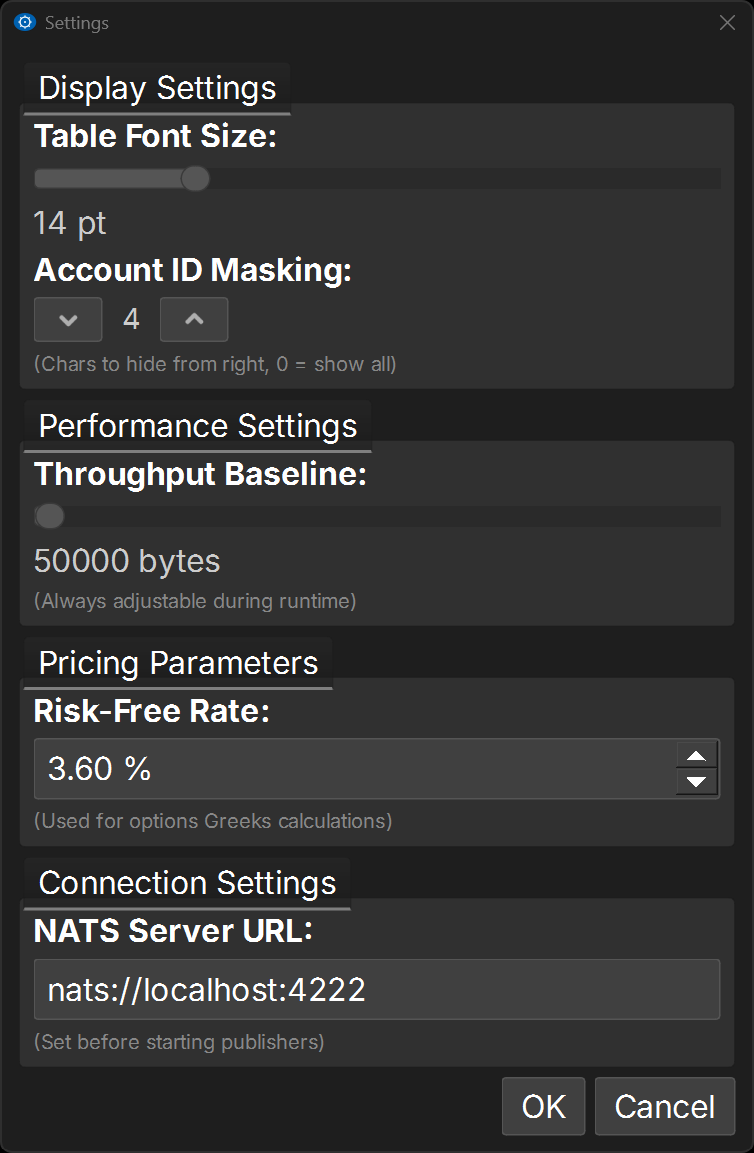
Access settings via Settings in the menu bar.
Display Settings
Section titled “Display Settings”-
Table Font Size: font size for the connections table
-
General Font Size: font size for surrounding labels and dialogs
-
Account ID Privacy: how the entered account ID is displayed in Rover’s connections table. The Account Name column sits next to it and is always shown, never masked. Three modes:
- Actual: the full account ID.
- Mask: a partial ID, controlled by a value from 0 to 10.
0shows the full ID; higher values hide more of it (for example,U123****). - Obfuscate: real IDs replaced with sequential placeholders (
U00000000,U00000001, and so on).
Use Mask or Obfuscate to hide real account numbers when sharing screens or capturing screenshots. In the browser, account ID display is controlled separately in Settings, which adds a Name mode that shows the Account Name set here.
Performance Settings
Section titled “Performance Settings”- Throughput Baseline: sets the 100% reference for the % and Data Flow columns, in bytes per second. The slider starts at its
50000minimum, which is also the default; raise it to suit typical data volume. Stored asThroughputBaselineBytesin RoverConfig.json. Always adjustable during runtime.
Pricing Parameters
Section titled “Pricing Parameters”- Risk-Free Rates: the annualized interest rate used for options pricing calculations, set per currency. Each rate applies to securities denominated in that currency (USD, AED, AUD, BRL, CAD, CHF, CNH, CZK, DKK, EUR, GBP, HKD, HUF, ILS, JPY, KRW, MXN, MYR, NOK, NZD, PLN, RON, SAR, SEK, SGD, TRY, TWD, ZAR). For each currency, OptionsRealTime uses a flat rate model with QuantLib across all expirations, from short-dated options to LEAPS. While full yield curve models may be added in the future, options pricing is relatively insensitive to small rate variations, and a flat rate provides consistent results. Locked after application start; restart required to change.
Connection Settings
Section titled “Connection Settings”- NATS Server URL: the address of the NATS server. Locked after application start; restart required to change.
Connection URLs
Section titled “Connection URLs”- Hostname: the machine-name URL for the web UI (e.g.,
http://MyMachineName:5000). The Web UI button renders it inName.local:Portform for Mac and iPhone mDNS support. - IP address (fallback): the IP-based URL for clients that cannot resolve the hostname.
Configuration File
Section titled “Configuration File”Shows the path to the active RoverConfig.json.
Diagnostics
Section titled “Diagnostics”- Describe the problem: a short note on what went wrong (e.g.,
charts stopped updating around 2pm) - Send Diagnostics: sends today’s log files, with the note, to OptionsRealTime support. Nothing leaves the machine unless this button is clicked.
Developer Tools
Section titled “Developer Tools”Optional toggles that expand the default Rover UI with additional panes and controls. Useful during development, troubleshooting, or deeper inspection. The toggles are saved with the configuration and restored on the next Rover launch.
- Show Monitoring tab: adds a tab bar with Configuration and Monitoring tabs, the second holding live portfolio metrics aggregated across accounts
- Show Configuration logs pane: adds an integrated logging console below the connections table
- Show throughput columns: adds detailed throughput columns (Acct Time, Bytes Security, Bytes/Sec Security) to the connections table, alongside the default % and Data Flow columns
- Show Restart buttons: adds a Restart column with a restart button on each account row
- Show Client ID column: adds a column showing the client ID Rover assigned to each connection. For diagnostics only; client IDs are assigned automatically and are not user-configurable.
With every Developer Tool enabled, Rover expands to show all available panes and controls, as in the screenshot at the top of this page.
Monitoring (Developer Tool)
Section titled “Monitoring (Developer Tool)”Enable Show Monitoring tab in Settings > Developer Tools to add the tab bar and the Monitoring tab.
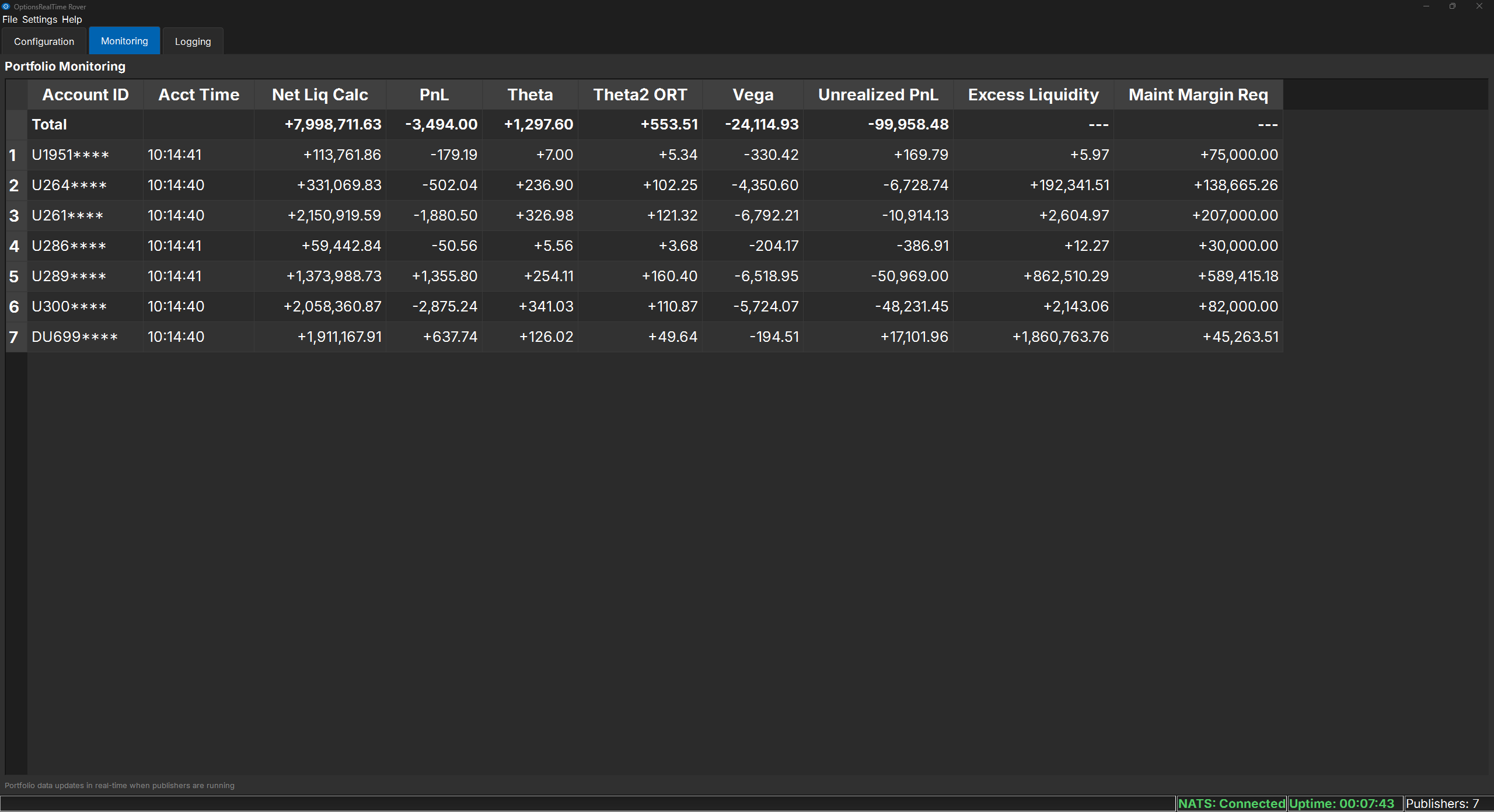
The Monitoring tab, headed Portfolio Monitoring, provides a live dashboard of portfolio metrics across all connected accounts. Each row displays key values for one account, with a Total row at the top aggregating values across all accounts. Values update in real time while the analyzers are running.
Configuring Columns
Section titled “Configuring Columns”Click Configure Columns… to customize which metrics appear in the table, or right-click the table header to show and hide columns directly. The column selector offers over 100 portfolio-level fields including:
- Value metrics: Net Liquidation, Gross Position Value, Option Market Value
- PnL metrics: Daily PnL, Unrealized PnL, PnL by instrument type
- Greeks: Delta, Gamma, Theta, Vega, and their variants (calls/puts, long/short)
- Margin: Initial and Maintenance margin requirements, Excess Liquidity
- Notional exposure: Notional values broken down by calls, puts, long, and short
- Extrinsic/Intrinsic: Time value and intrinsic value decomposition
Use the filter box to quickly find specific fields, or check Select All to display everything. Changes apply immediately; click Close when done. Account IDs can be masked or obfuscated for privacy when sharing screens or taking screenshots (see Account ID Privacy under Settings).
Throughput Columns (Developer Tool)
Section titled “Throughput Columns (Developer Tool)”Enable Show throughput columns in Settings > Developer Tools to add detailed per-row throughput metrics to the connections table, alongside the default % and Data Flow columns:
- Acct Time: the account time reported by the TWS instance, confirming live data flow
- Bytes Security: instantaneous bytes received for the Security table (the largest data table)
- Bytes/Sec Security: rolling bytes per second
Restart Buttons (Developer Tool)
Section titled “Restart Buttons (Developer Tool)”Enable Show Restart buttons in Settings > Developer Tools to add a Restart column to the connections table. The button on an account row restarts that one analyzer and leaves the rest running: the process is stopped and a fresh one launched, reconnecting to TWS, downloading positions, and resuming analytics streaming. Use it on a row whose Status has gone red.
Logging Console (Developer Tool)
Section titled “Logging Console (Developer Tool)”Enable Show Configuration logs pane in Settings > Developer Tools to add an integrated logging console below the connections table. The tabs across the top select which log to follow: Rover for Rover’s own log, plus one tab per account, labeled with that account’s ID, for its analyzer log. This makes it easy to isolate issues with a specific TWS connection. The file being followed is named alongside the controls (e.g., Tailing: Publisher_U1234567_2026-07-30.log), and entries appear as they are written.
- Auto-scroll: toggles whether the console follows new entries as they appear
- Refresh: re-reads the active log file
- Filter: check the levels to display: Debug, Info, Warn, Error, and Critical. Debug is off by default.
File Menu
Section titled “File Menu”- Load Config: load a previously saved configuration file
- Load Installation Config: reset to the factory default configuration
- Save (Ctrl+S): save the current configuration
- License…: view and manage the license (see below)
- Exit: gracefully stop all analyzers and close Rover
License Management
Section titled “License Management”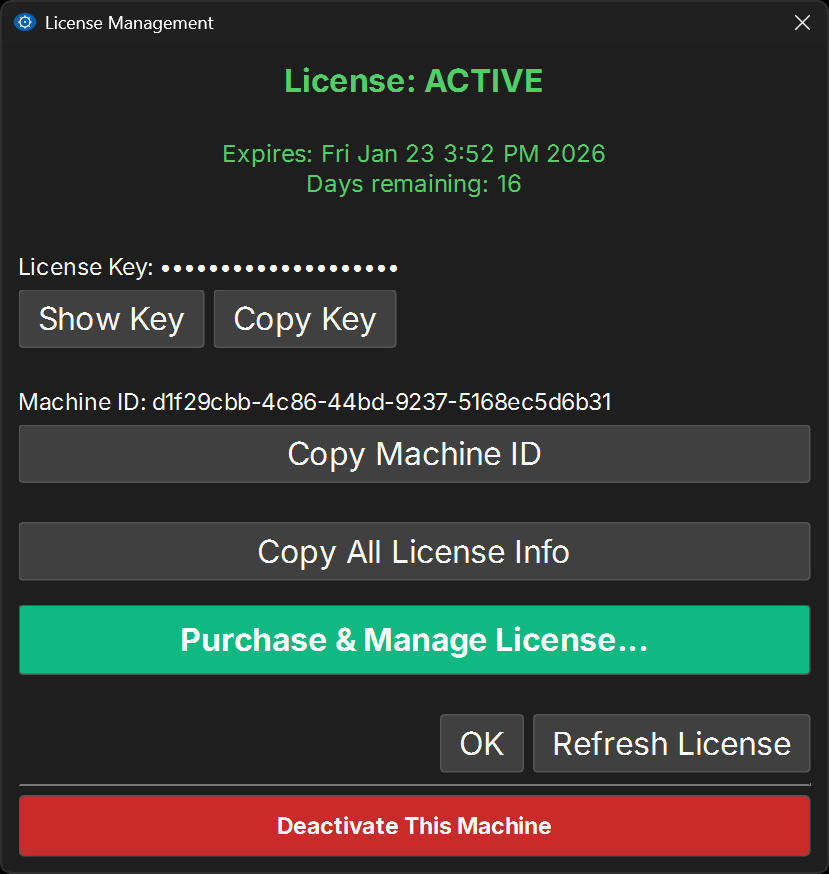
The License Management dialog displays the current license status, including expiration date and days remaining. From here:
- View or copy the license key
- Copy the Machine ID (required for license activation)
- Access the license portal to purchase or manage licenses
- Refresh license status after renewal
- Deactivate this machine (to transfer a license to another computer)