
Metrics
The Metrics Bar sits between the navigation bar and the component area. It shows a row of metrics, each displaying a label and a live value aggregated across the selected accounts. The Metrics Bar automatically expands to multiple rows as the Metrics Strip font size (in Settings) increases or more metrics are added.

Toolbar
Section titled “Toolbar”- Show/hide toggle: collapses or expands the Metrics Bar
- Currency selector: sets the currency used by the Metrics Bar and the active component (see Currency)
- Accounts: shows the currently selected accounts (from the Account Selector)
- View selector: switch between named metric configurations
- Save Metrics View: save the current configuration
- View Actions (hamburger menu): Reload, Save As, Rename, and Delete the current view (Rename and Delete are unavailable for the Default view)
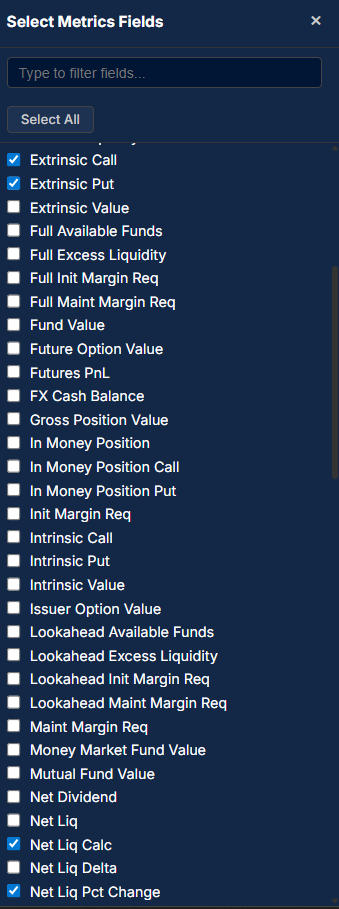
- Fields: add or remove metrics from a searchable list of available fields
Currency
Section titled “Currency”Each metric indicates the currency in which its value is expressed, shown as a label on the metric. A blue badge next to the currency marks a metric associated with the account’s base currency. Metrics fall into two groups:
- Base currency metrics: account-level metrics such as Net Liquidity and PnL are always expressed in the account’s base currency (for example USD for a USA-domiciled account) and carry the blue badge.
- Position currency metrics: metrics derived from traded instruments are expressed in the currency each instrument trades and settles in.
For accounts holding positions in more than one currency (for example a CAD equity or a EUR option in a USD base-currency account), position currency metrics can be toggled to display values for each non-base currency held.
Fields
Section titled “Fields”Click the Fields button to open the field selector. Choose from portfolio-level metrics including Greeks, PnL, value, notional, and margin. Check or uncheck fields to add or remove them from the Metrics Bar.
Drag and Drop
Section titled “Drag and Drop”Metrics can be dragged to any position. While dragging, highlighted borders appear around the surrounding metrics indicating where the dragged metric will be inserted.

A metric can be removed by clicking the X in the upper right corner of its label area.