
Web App Overview
OptionsRealTime runs in any browser on the network. A single component (chart, quotes panel, report, or table) occupies the central area. The component is surrounded by one or more rows of metrics across the top and an account selector on the left side. Both the component and metrics respond to the accounts selected.
General Layout
Section titled “General Layout”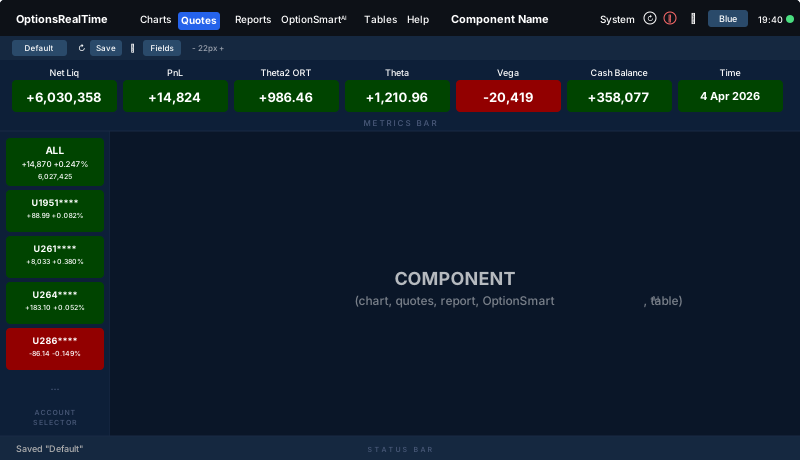
Here is an example showing the Vol Scenario Chart for one underlying, with the Filter panel in Info mode and one position selected:
Navigation Bar
Section titled “Navigation Bar”The navigation bar runs across the top of every page. The active component is highlighted in the menu. Its title appears above the component area, beneath the Quotes Bar.
The left side contains the navigation for the components: Charts, Dashboard, Quotes, Reports, Tables, OptionSmart, Spreadsheet, Streams, and Help. Charts, Tables, and Help open a dropdown; the rest go straight to the page.
The right side contains the System table button, refresh button, reboot analyzers button, theme selector dropdown, settings gear, account display toggle, clock, and stale data indicator.
The account display toggle cycles through the account ID display modes (Actual, Mask, Obfuscate, Name) as a shortcut to the same control in Settings.
The theme selector dropdown switches between any named theme that has been saved.
Account Selector
Section titled “Account Selector”The Account Selector runs down the left side of every page. It shows one button per connected account, plus an ALL button at the top.
Each button shows the account ID, current PnL, percentage change, and net liquidation value, color-coded by the configured positive and negative theme colors. The account ID display follows the privacy mode selected in Settings.
Two mode buttons at the top of the selector switch between sticky (multi-select toggle) and radio (single-select) modes. The ALL button selects every connected account in either mode. Every metric, chart, quote, table, and report on the page updates to reflect the selection. See Account Selector for details.
The account buttons scale with the Account Sidebar font control (in Settings).
Metrics Bar
Section titled “Metrics Bar”The Metrics Bar sits between the navigation bar and the component area. It shows a row of metrics, each displaying a label and a live value aggregated for the selected accounts.
Metrics can be dragged to any position. A metric can be removed by clicking the X in the upper right corner of its label area. The Metrics Bar automatically expands to multiple rows as the Metrics Strip font size (in Settings) increases or more metrics are added. See Metrics for details.
Toolbar controls:
- Show/hide toggle: collapses or expands the Metrics Bar
- Currency selector: sets the currency used by the bar and the active component
- Accounts: shows the currently selected accounts
- View selector: switch between named metric configurations
- Save Metrics View: save the current configuration
- View Actions (hamburger menu): Reload, Save As, Rename, and Delete (Rename and Delete are unavailable for the Default view)
- Fields: add or remove metrics
Quotes Bar
Section titled “Quotes Bar”The Quotes Bar sits between the Metrics Bar and the component area. Each quote shows one stream: a single field from one row of one table, in the stream’s color, with an optional sparkline of its recorded history. The bar is part of the page frame, so it stays in view on every page.
Add Quote lists the existing streams and adds the chosen one to the bar. Streams are created on the Streams page. See Quotes Bar for details.
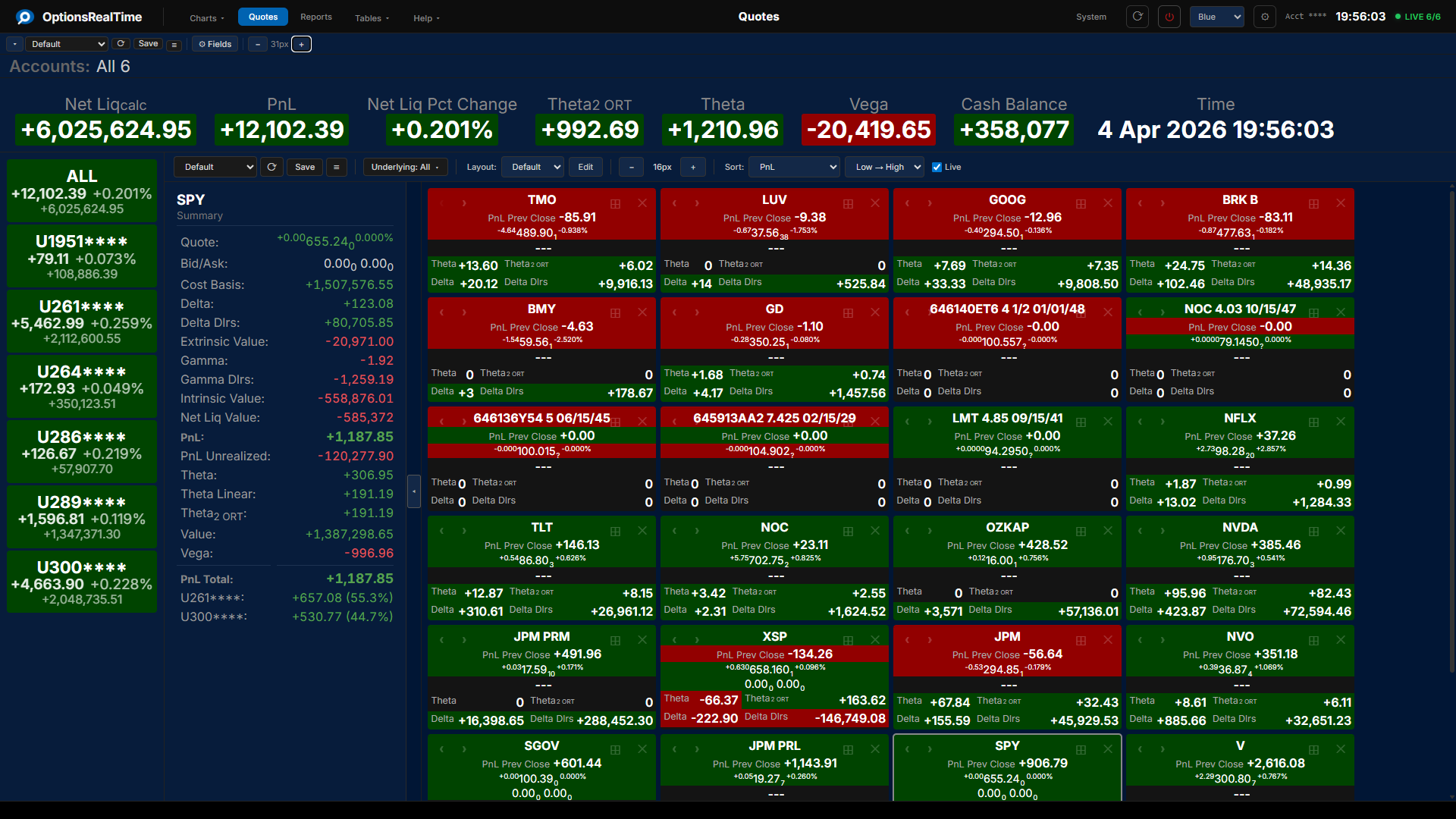
The Quotes Bar and the Quotes page are separate: the page shows a configurable quote for every underlying in the portfolio, while the bar shows selected streams.
Showing and Hiding Panels
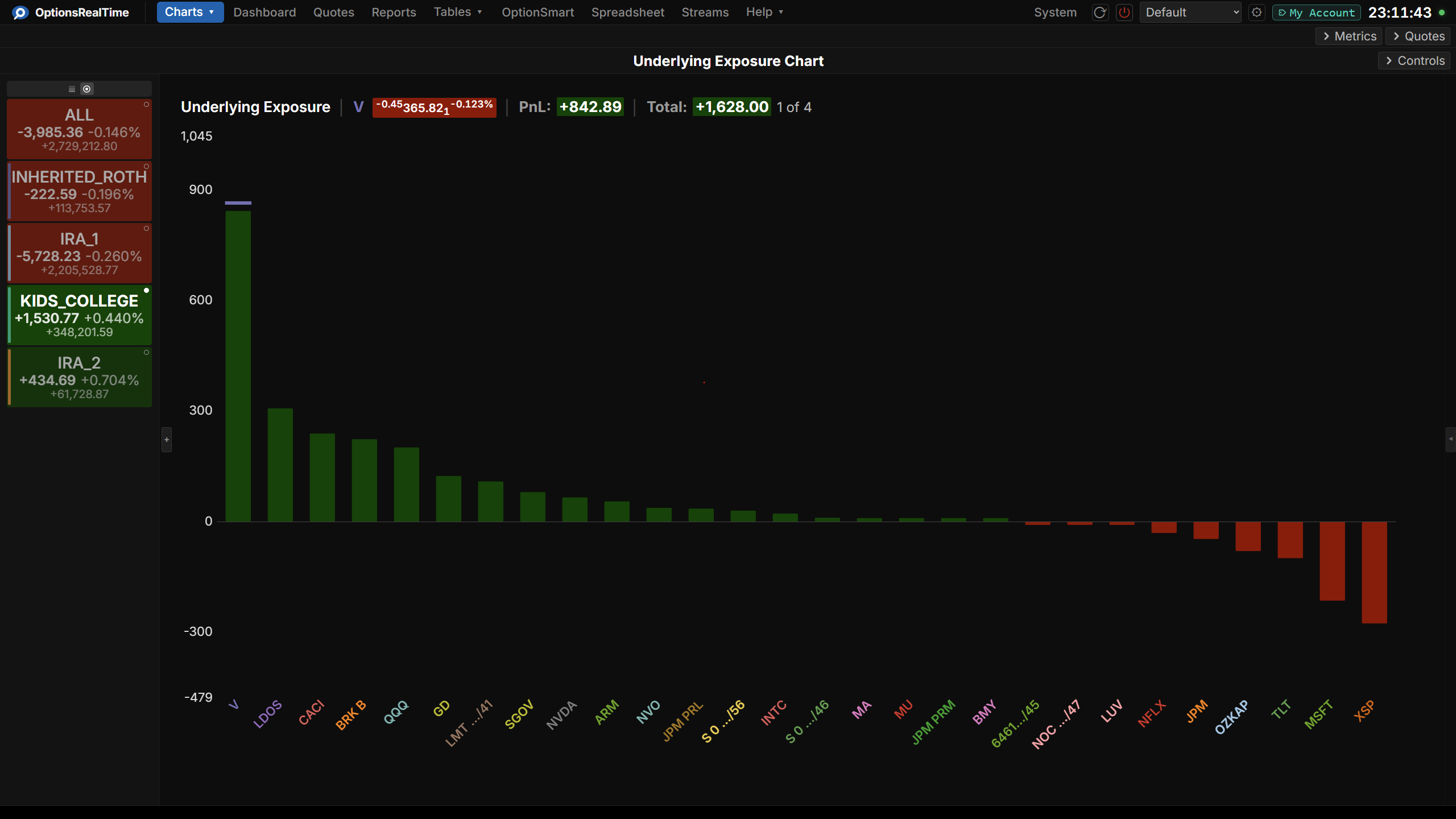
Section titled “Showing and Hiding Panels”Three strips can be collapsed independently on any page, each with a chevron at its right edge: Metrics, Quotes, and Controls. Collapsing a strip leaves only its chevron in place, and the component area takes the freed space. Controls is the component’s own toolbar, so what it holds depends on the page.
Position Filter
Section titled “Position Filter”The Position Filter is a panel on the right side of the page, with two modes. Selection selects any subset or all positions across multiple accounts, and the active component reflects that selection. Info shows the full detail of one position.
Toggle the panel with the Filter button in the component toolbar. The controls that narrow the selection by underlying, type, side, or expiry sit in the component’s own Controls row, and the panel is where that selection is adjusted by hand.
The Position Filter is available on Underlying Exposure, Account Exposure, Position Exposure, Expiry Exposure, Expiry Profile, Delta Profile, Vol Scenario, Vol Sweep, Reports, and Tables. See Position Filter for details.
Component Area
Section titled “Component Area”The component area fills the rest of the screen. Navigate to any component using the menus in the navigation bar.
Each component has its own toolbar with a view selector, view actions menu, save button, font size control (where applicable), and component-specific controls such as column selection, chart modes, and filters.
Component views are saved by name and persist across sessions. All browsers share the same saved views, including component, theme, and metrics configurations.
Right-Click Navigation
Section titled “Right-Click Navigation”Right-clicking on any bar, row, or position in any component opens a context menu with links to other components. The destination loads filtered to the selection. The available options depend on the component and the item selected.
Status Bar
Section titled “Status Bar”The status bar runs along the bottom of every page. It displays confirmations and feedback for actions such as saving, creating, or deleting views (e.g., Saved "Default", Created "ABC", Deleted "MAIN").
Font Sizes
Section titled “Font Sizes”Font sizes are controlled in the Settings dialog. Seven UI areas can be sized independently:
- Buttons & Controls
- Metrics Strip
- Account Sidebar
- Side Panels
- Chart Titles
- Chart Axes, Labels, Hover
- Streams
The label, the value, and the sparkline of a quote in the Quotes Bar are sized separately, under Quotes in the same dialog.
A few components have an additional font-size control in their toolbar:
- Tables: table text
- Reports: report text
- Quotes: live quotes per underlying
- OptionSmart: output text
Settings
Section titled “Settings”The gear icon in the navigation bar opens the Settings dialog for theme, privacy, and global configuration. See Settings for details.
Save and Load
Section titled “Save and Load”Saving works the same way throughout the platform:
- Metrics Bar: save named metric configurations
- Themes: save named color and font themes
- Components: save named views for each component
All browsers share the same saved views, including component, theme, and metrics configurations.
Components
Section titled “Components”Charts
Section titled “Charts”| Component | Description |
|---|---|
| Account Exposure | Exposure viewed by account or by underlying |
| Delta Profile | A selected metric for an underlying, categorized by single-option delta, at a chosen date, volatility, and underlying move |
| Expiry Exposure | A selected metric for an underlying, aggregated by expiration date, colorized by yield |
| Expiry Profile | Risk and metrics distributed across expiration dates |
| Portfolio PnL | Portfolio net liq and PnL through the trading day |
| Position Exposure | Every position mapped by risk, colorized by yield |
| Underlying Exposure | Greeks and metrics by underlying across accounts, with scenario modeling |
| Underlying PnL | Live PnL and price charts per underlying |
| Vol Scenario | Portfolio response to price and volatility moves |
| Vol Sweep | A selected metric swept across a range of implied volatilities, at the moves you choose |
Quotes
Section titled “Quotes”| Component | Description |
|---|---|
| Quotes | Configurable live quotes per underlying |
| Quotes Bar | Selected streams across the top of every page |
Streams
Section titled “Streams”| Component | Description |
|---|---|
| Streams | Record any table field as a live time series |
| Dashboard | Line and bar charts built from recorded streams |
Reports
Section titled “Reports”| Component | Description |
|---|---|
| Reports | Positions grouped by underlying or expiration |
OptionSmart
Section titled “OptionSmart”| Component | Description |
|---|---|
| OptionSmart | Package your live portfolio analytics into a preformatted prompt for any AI |
Tables
Section titled “Tables”| Component | Description |
|---|---|
| Tables | Position, Underlying, Portfolio, and System tables with live data |
Spreadsheet
Section titled “Spreadsheet”| Component | Description |
|---|---|
| Spreadsheet | A live worksheet driven by ORT_* formulas |
| Component | Description |
|---|---|
| Excel | Real-time data in Excel via RTD formulas. Runs as a separate client on any machine, connects to the same data stream as the browser. |