Quotes
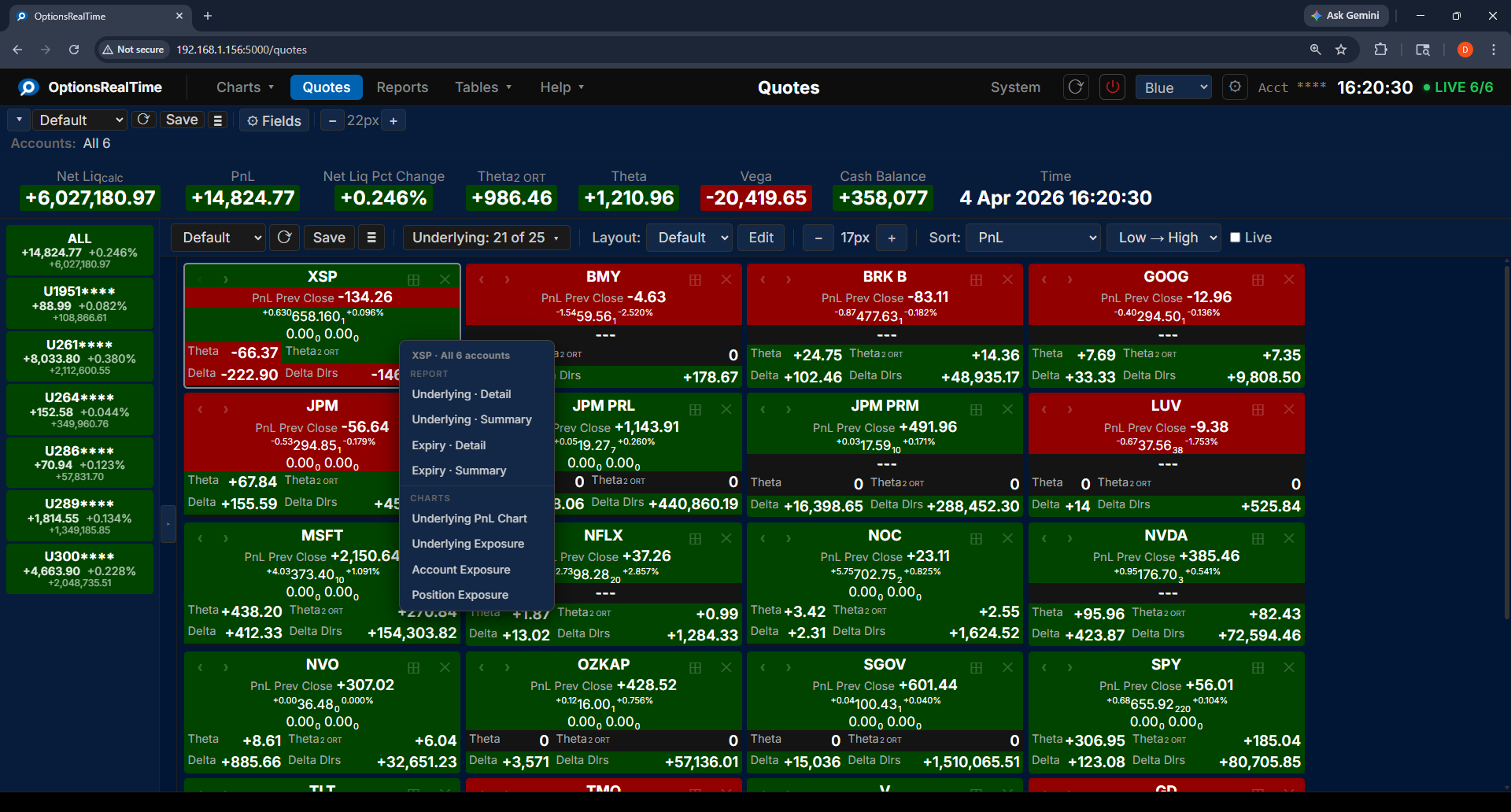
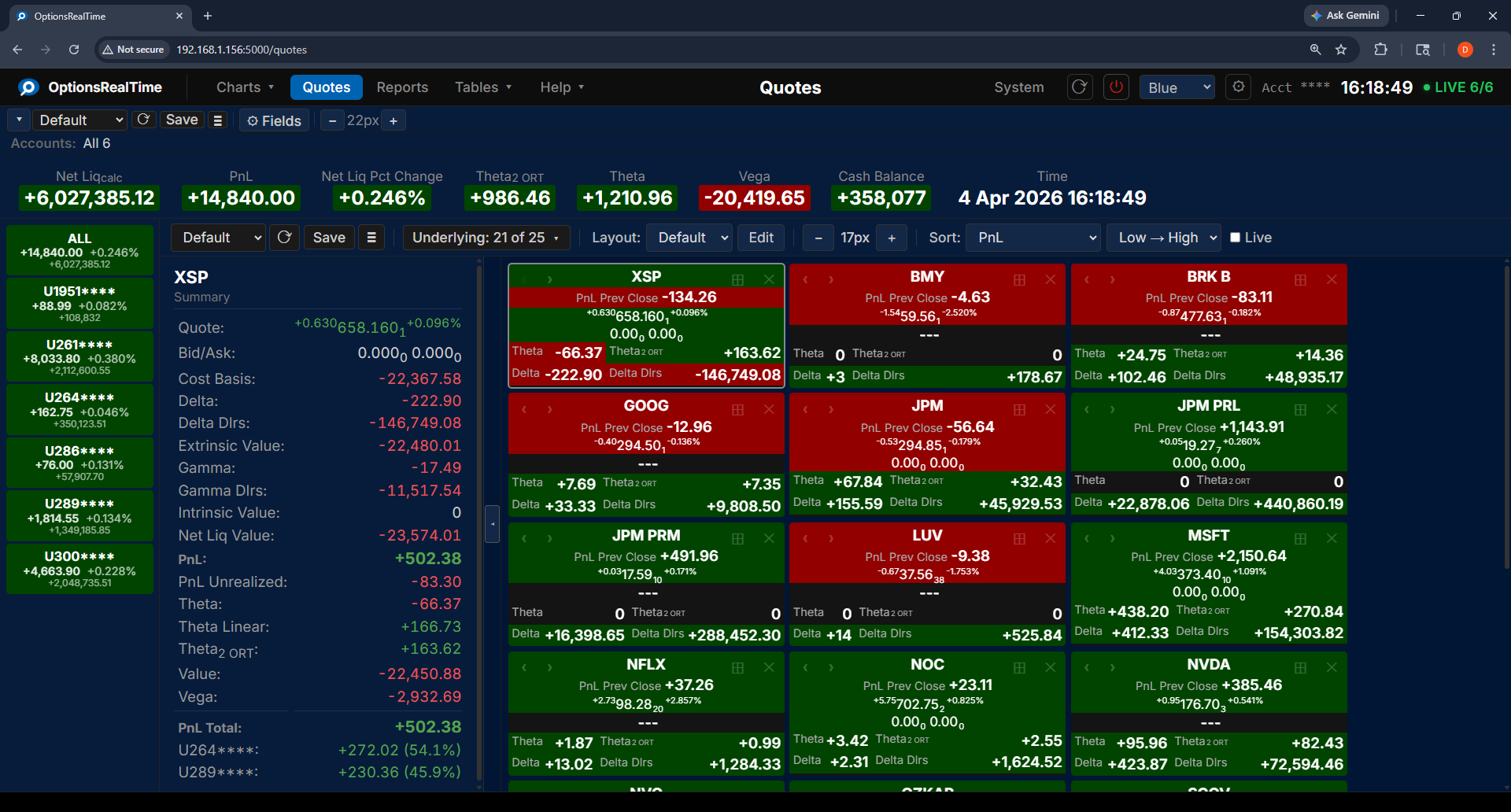
Quotes displays a quote for each underlying in the portfolio. Each quote shows aggregate metrics for all positions in that underlying, updated live. Quotes flow in a grid and reflow as the window is resized.
Toolbar
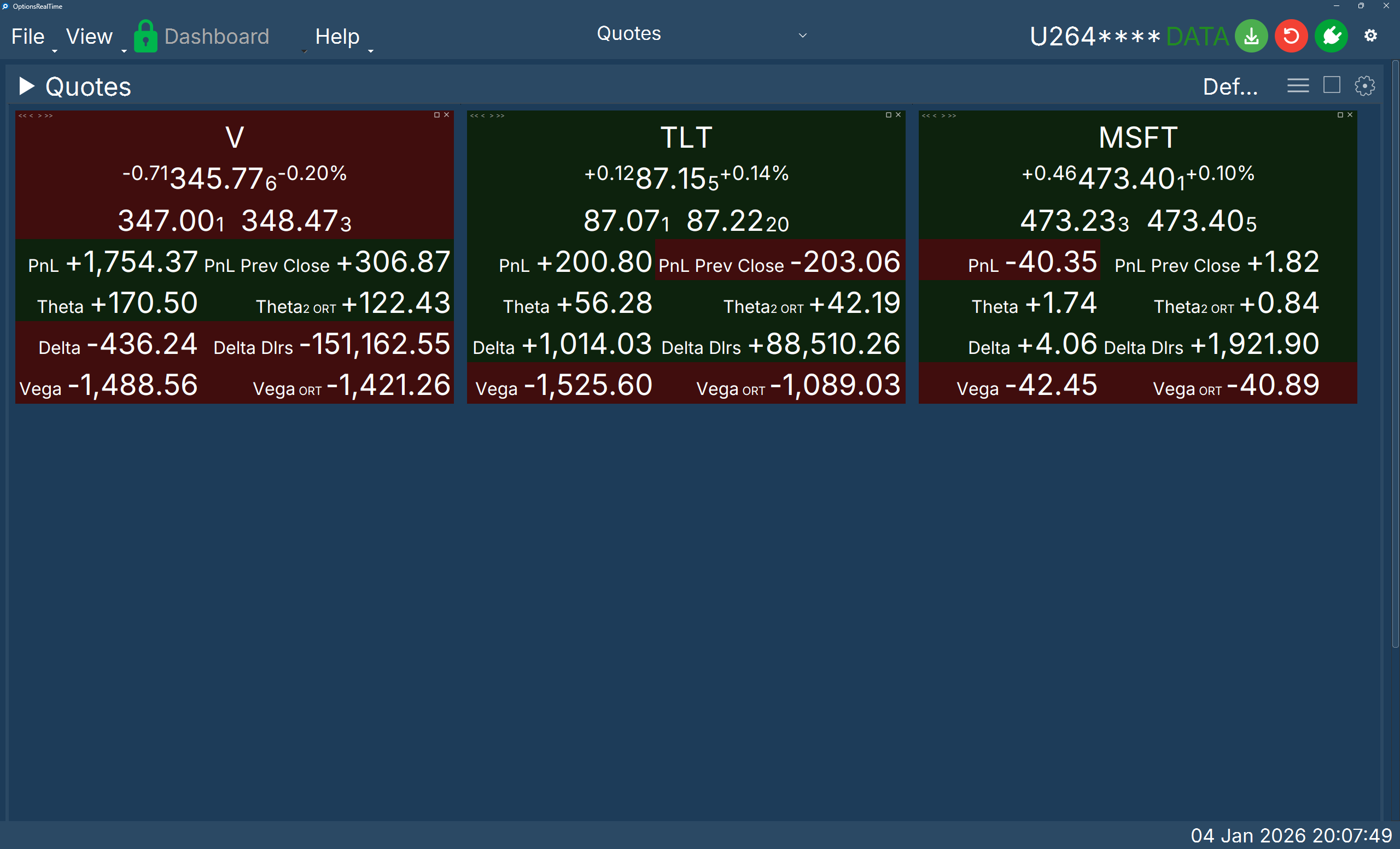
Section titled “Toolbar”- View selector: switch between named quote configurations
- Save Quotes View: save the current configuration
- View Actions (hamburger menu): Reload, Save As, Rename, and Delete the current view (Rename and Delete are unavailable for the Default view)
- Underlying selector: dropdown with checkboxes to choose which underlyings to display (e.g., “21 of 25”)
- Layout selector: switch between saved layouts
- Edit: open the Layout Editor
- Font size: controls the size of the quotes
- Sort: sort quotes by any of 20+ metrics (PnL, Delta, Theta, Vega)
- Sort direction: Low to High or High to Low
- Live: when checked, quotes are continuously re-sorted as values change, disabling manual reordering
Quote Controls
Section titled “Quote Controls”Each quote has controls in its corners.
Left corner:
- <: send the quote to the beginning of the first row
- >: send the quote to the end of the last row
Right corner:
- Maximize: expand the quote to fill the component area (see below)
- X: hide the quote
Drag and Drop
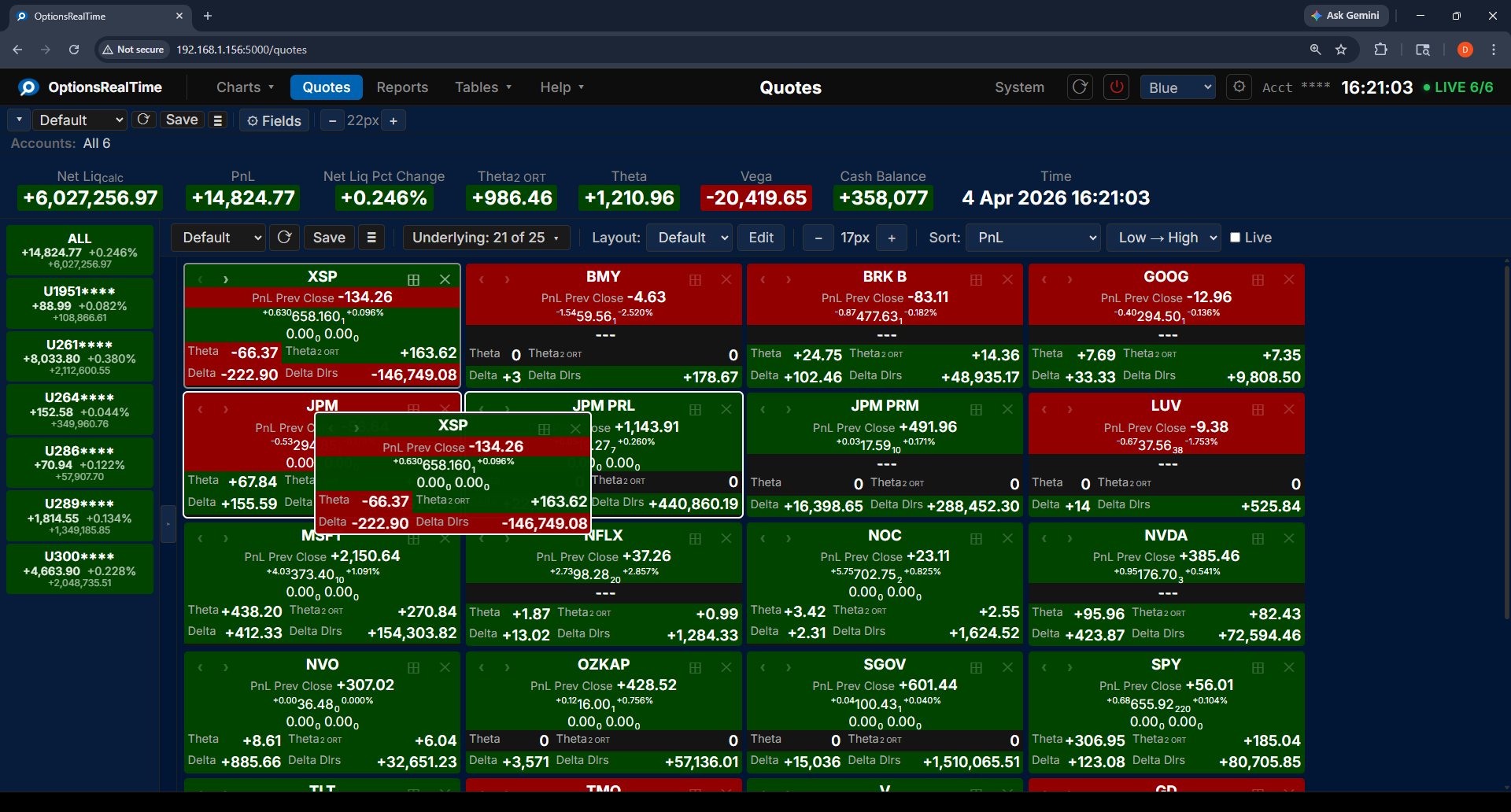
Section titled “Drag and Drop”Quotes can be dragged to any position. While dragging, highlighted borders appear around the surrounding quotes indicating where the dragged quote will be inserted.
Maximized View
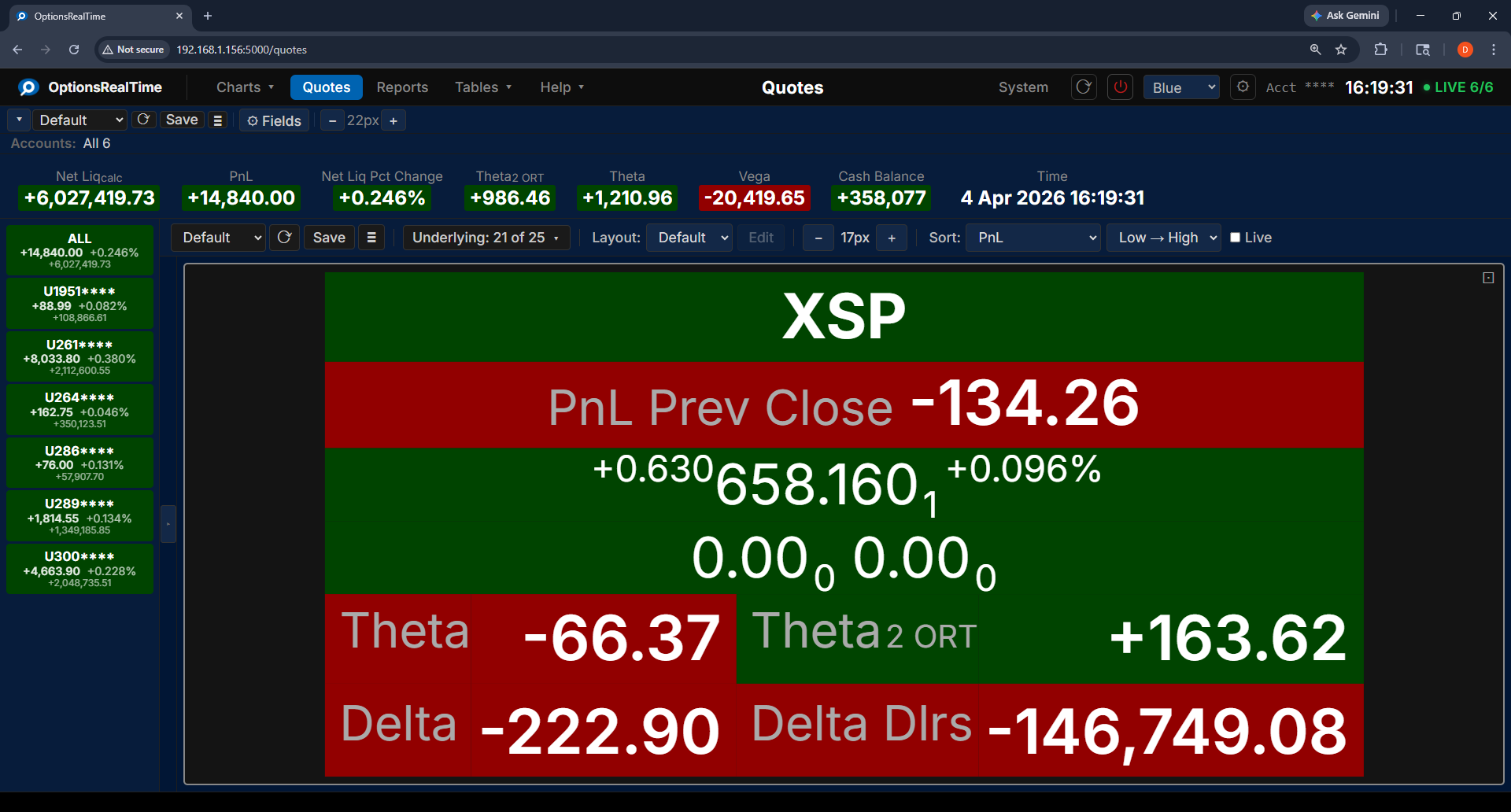
Section titled “Maximized View”Click the maximize button on any quote to expand it to fill the component area, showing only that quote. Click the minimize button in the upper right to return to the layout.
Side Panel
Section titled “Side Panel”A side panel can be opened to show aggregate metrics for the selected quote’s underlying, including Greeks, PnL, and Value. The panel also shows a PnL breakdown by account.
Layout Editor
Section titled “Layout Editor”The Layout Editor defines what fields appear inside each quote and how they are arranged. Each layout consists of rows, and each row can have one or more columns. Any metric can be placed in any column.
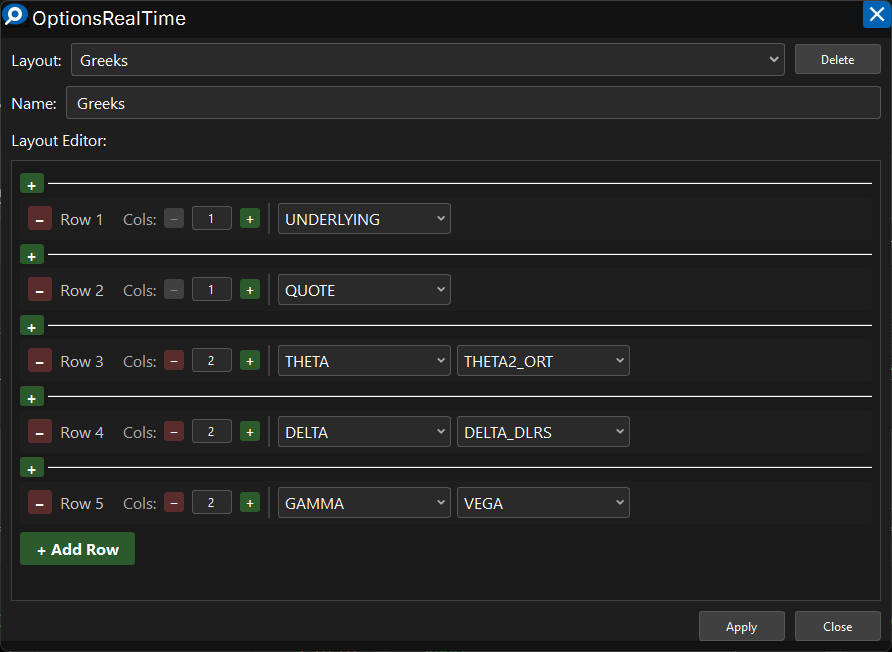
- Add or remove rows with the + row and X buttons
- Adjust the number of columns per row with - and +
- Select a metric for each column from the dropdown
- Save the current layout with the Save button
- Manage layouts from the hamburger menu: Save As, Rename, and Delete (Rename and Delete are unavailable for the Default layout). To create a new layout, use Save As
- Switch between saved layouts at any time using the Layout dropdown in the toolbar
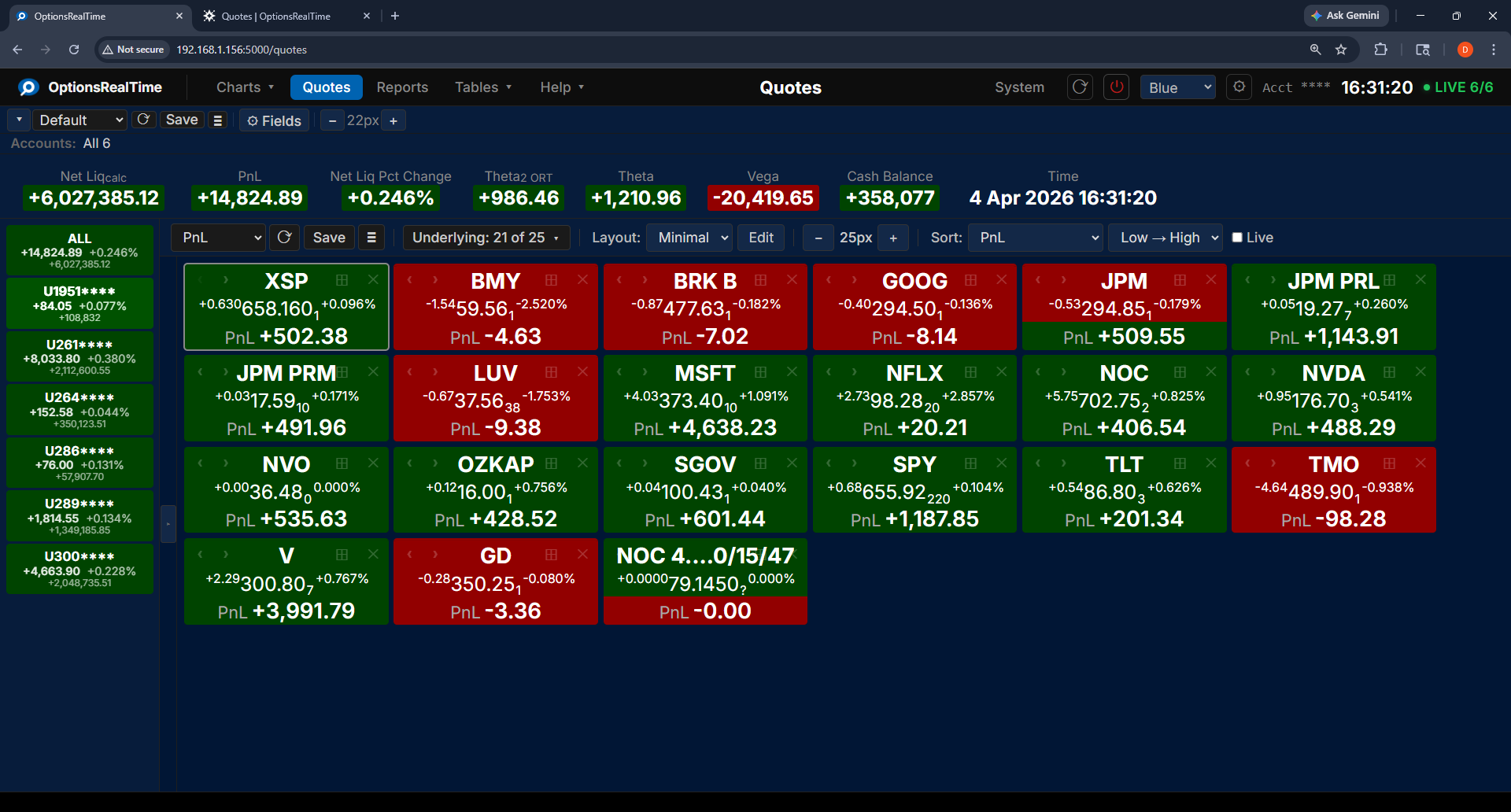
Different layouts can show different levels of detail. For example, a “Minimal” layout might show only the underlying name, quote, and PnL.
Right-Click Navigation
Section titled “Right-Click Navigation”Right-clicking any quote opens a context menu with links to related reports and charts, filtered to that underlying. Options include:
Reports: Underlying Detail, Underlying Summary, Expiry Detail, Expiry Summary
Charts: Underlying PnL Chart, Underlying Exposure, Account Exposure, Position Exposure