Account Exposure Chart
The Account Exposure chart provides two views of the same data:
- Account view: select an account to see the chosen metric for each of its underlyings
- Underlying view: select an underlying to see the chosen metric across each of its accounts
Toolbar
Section titled “Toolbar”- View selector: switch between named configurations
- Reload: reload the current view
- Save: save the current configuration
- View Actions (hamburger menu): Save As, Rename, and Delete the current view
- Account / Underlying toggle: switch between account view and underlying view
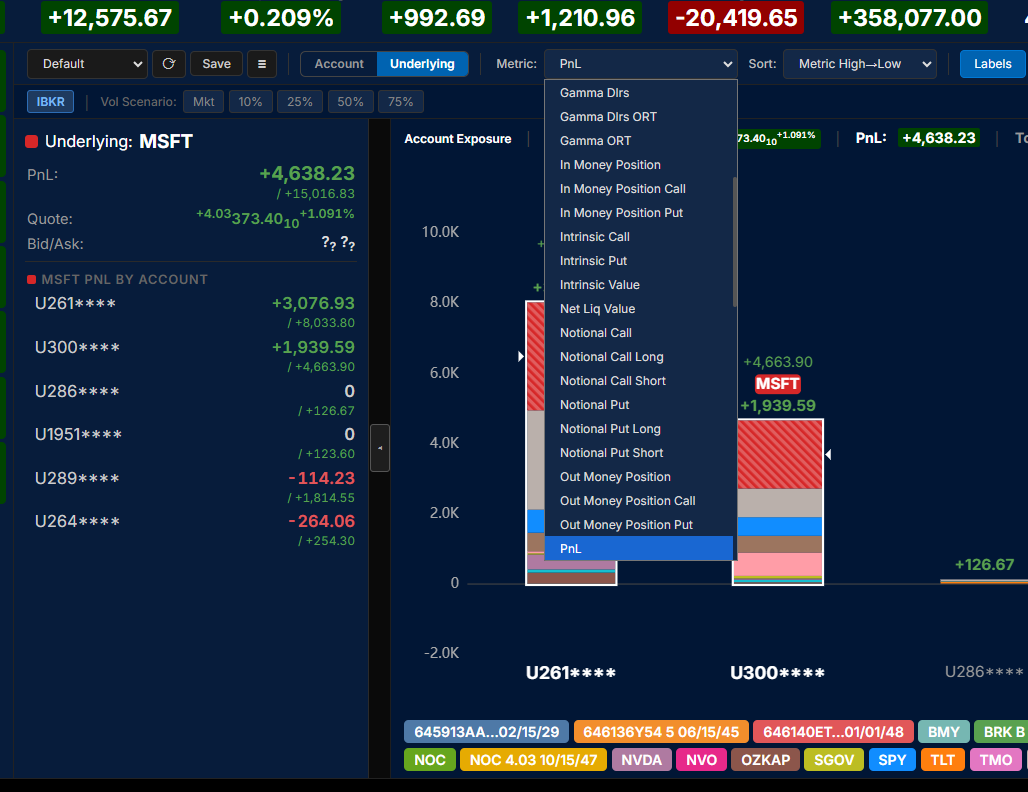
- Metric: select from available metrics including PnL, Greeks, Value, Notional, and more
- Sort: sort bars by metric value (High to Low or Low to High), by name (A to Z or Z to A), or by net liquidation value (High to Low or Low to High)
- Labels On: toggle value labels on each bar
- % NL: display values as a percentage of net liquidation
- Stacked / Grouped: toggle between stacked bars and grouped bars (side by side)
- Font size: controls the size of chart labels
Account View
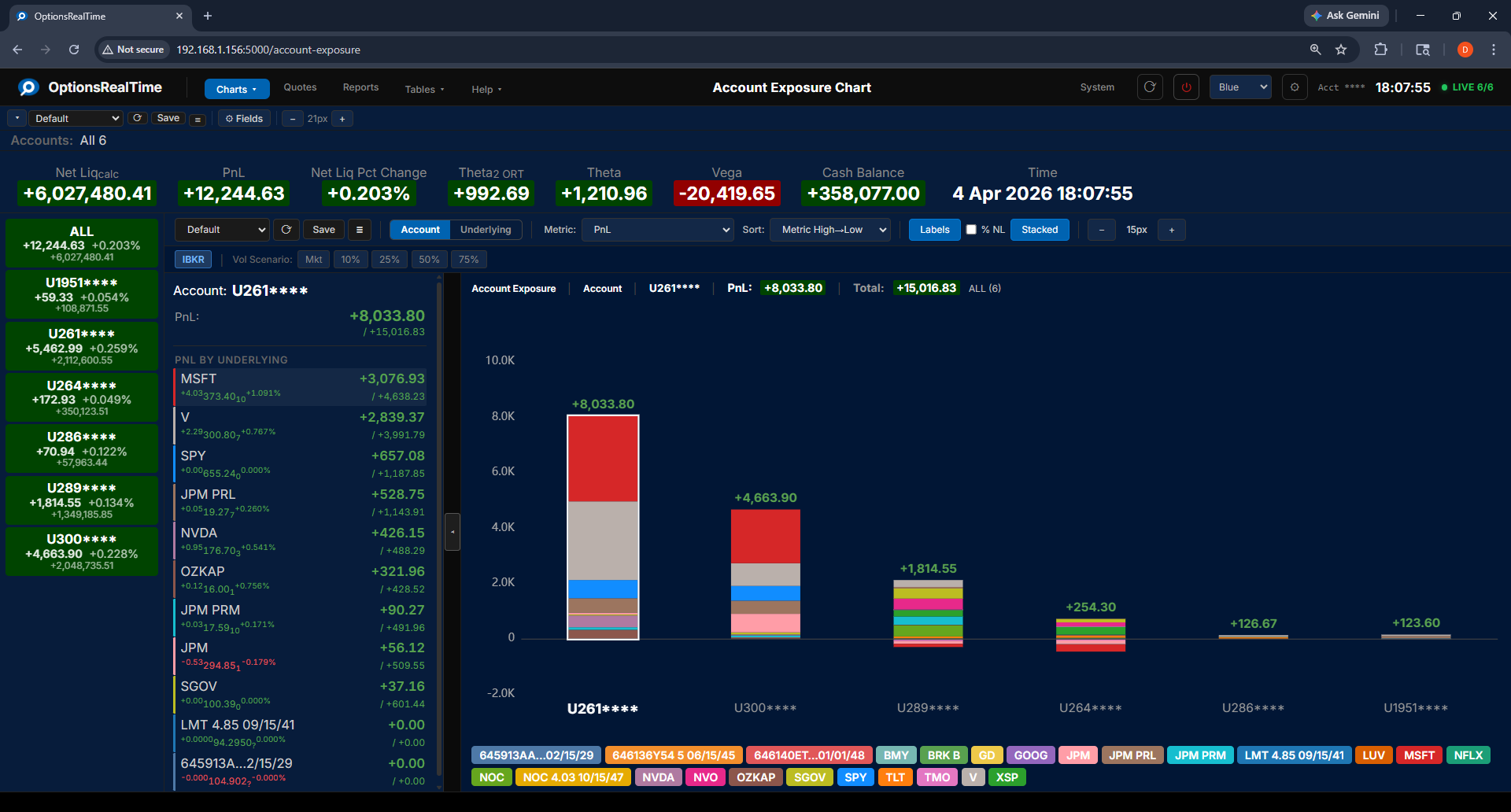
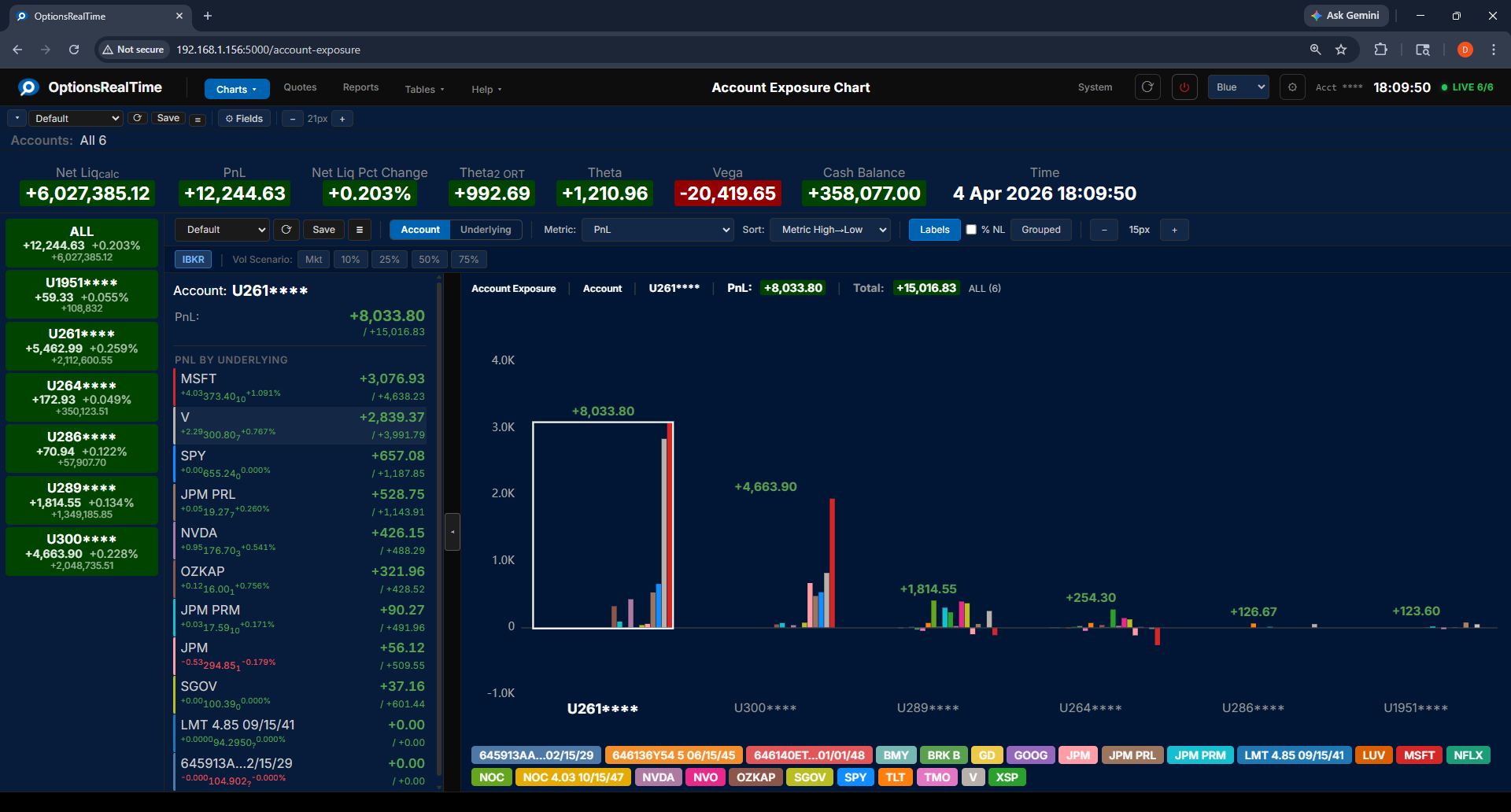
Section titled “Account View”In account view, each bar represents an underlying held by the selected account, color-coded by underlying. The chart header displays the selected account, the metric’s value for that account, and the total across all accounts.
Account view: stacked
Account view: grouped
Underlying View
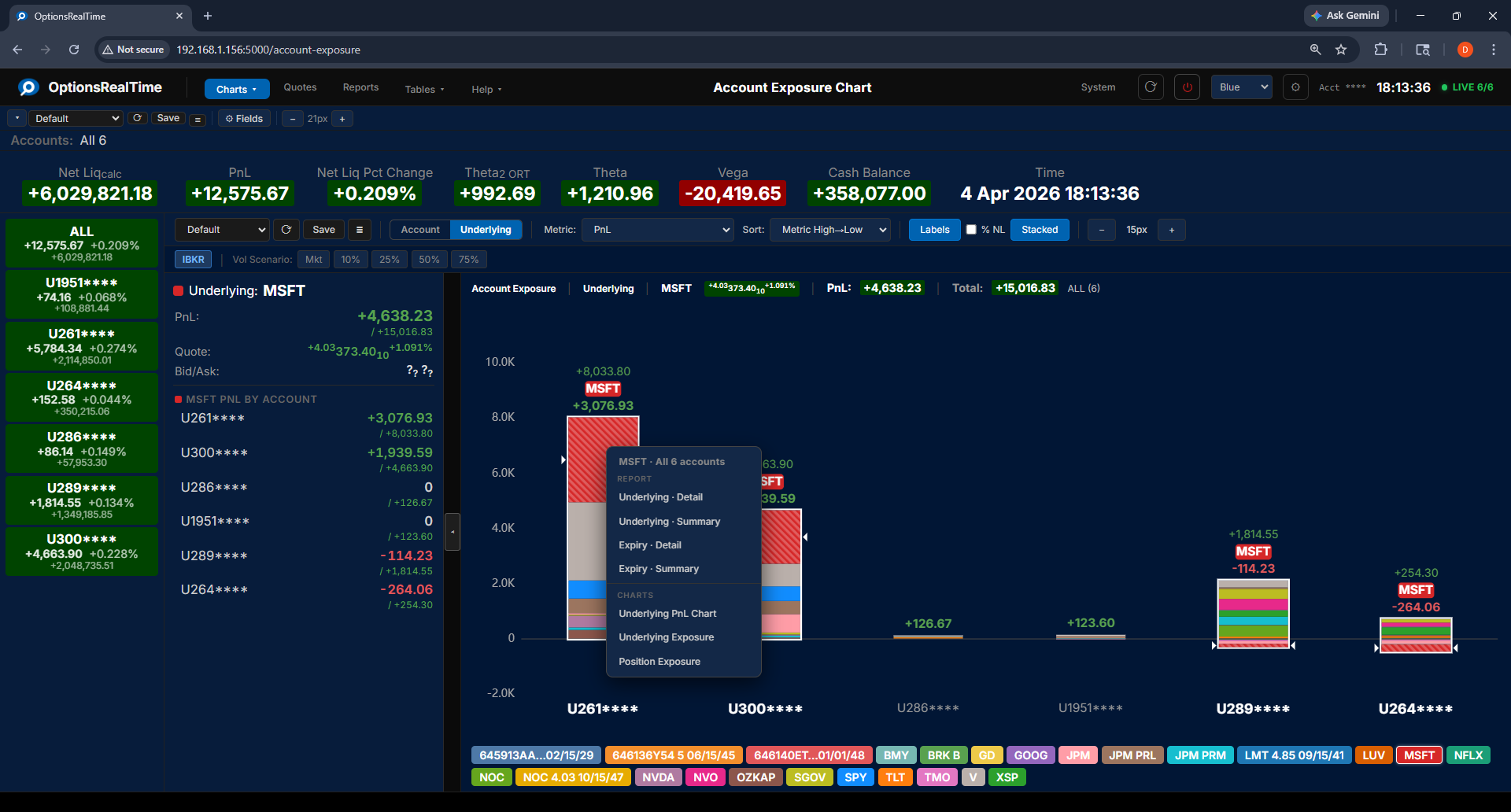
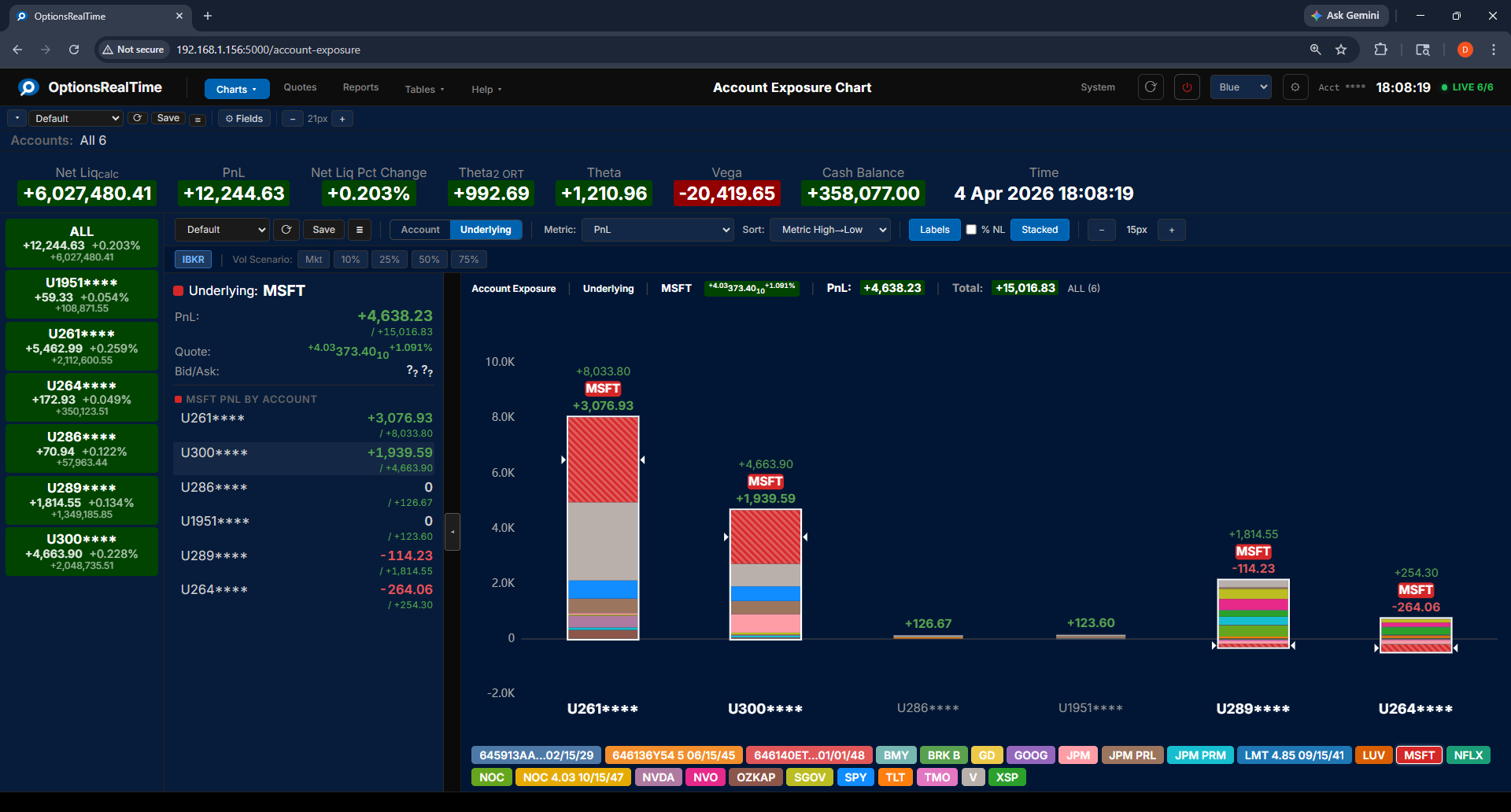
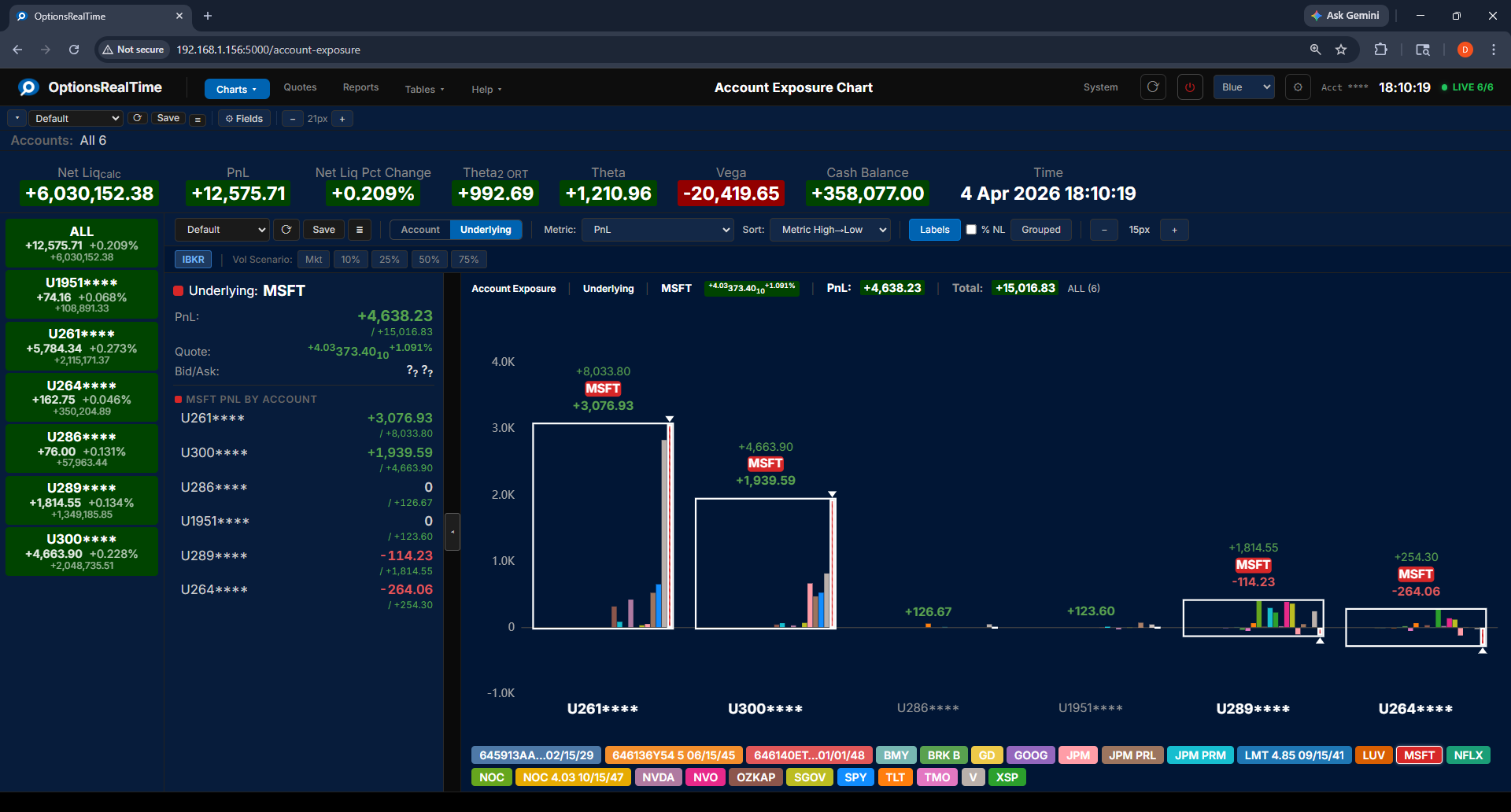
Section titled “Underlying View”In underlying view, each bar represents an account that holds the selected underlying, color-coded by underlying. The selected underlying is highlighted with cross-hatching across all account bars. The chart header displays the selected underlying symbol, its market quote, the metric’s value for that underlying, and the total across all underlyings.
Color-coded underlying buttons run along the bottom of the chart in both views. Clicking any button switches to underlying view with that underlying selected.
Underlying view: stacked
Underlying view: grouped
Side Panel
Section titled “Side Panel”The side panel can be opened by clicking the expand/contract tab in the center-left edge of the chart.
In account view, the side panel lists all underlyings for the selected account with their metric values. Clicking an underlying in the panel switches to underlying view with that underlying highlighted and all its accounts displayed.
In underlying view, the side panel lists all accounts holding the selected underlying with their metric values. Clicking an account in the panel switches to account view with that account highlighted and all its underlyings displayed.
Metrics
Section titled “Metrics”Select any metric from the dropdown to update the chart.
Vol Scenario
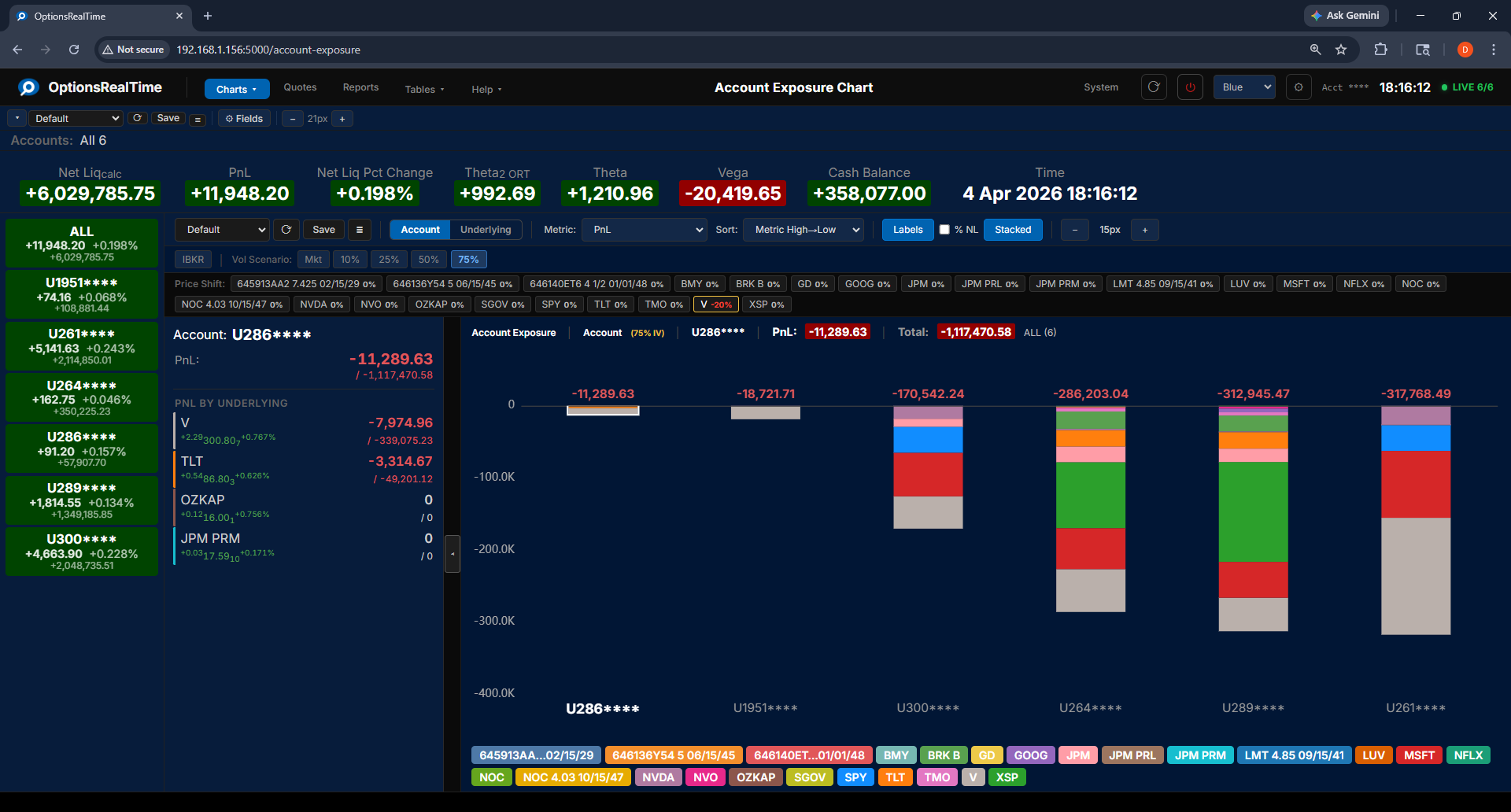
Section titled “Vol Scenario”The Vol Scenario toolbar switches between live IBKR market data and analytical what-if modeling:
- IBKR: live market values from IBKR
- Mkt: current market implied volatility
- 10%, 25%, 50%, 75%: scenario implied volatility levels
When a Vol Scenario is active, a Price Shift row appears showing every underlying with its current price adjustment. Any number of underlyings can be adjusted from -20% to +20%. The chart updates to show the projected metric value under both the IV scenario and the price moves.
Right-Click Navigation
Section titled “Right-Click Navigation”Right-clicking opens a context menu with links to related reports and charts for the selected accounts in the account selector. In underlying view, right-clicking a bar or the side panel navigates to that underlying. In account view with stacked bars, right-clicking a bar attempts to resolve the underlying at the click position. Right-click navigation is not available in account view with grouped bars: right-click an underlying in the side panel to bring up its context menu.