
NATS as a Service
NATS is a high-performance messaging system used by OptionsRealTime for real-time data streaming between components.
By default, you need to manually start NATS each time you use OptionsRealTime. This guide shows how to install NATS as a Windows service so it starts automatically.
Manual Start (Default)
Section titled “Manual Start (Default)”Double-click Start NATS from the OptionsRealTime desktop folder. You should see:
[INF] Starting nats-server[INF] Version: 2.10.16[INF] Starting JetStream[INF] _ ___ _____ ___ _____ ___ ___ _ __ __[INF] _ | | __|_ _/ __|_ _| _ \ __| /_\ | \/ |[INF] | || | _| | | \__ \ | | | / _| / _ \| |\/| |[INF] \__/|___| |_| |___/ |_| |_|_\___/_/ \_\_| |_|[INF][INF] https://docs.nats.io/jetstream[INF][INF] ---------------- JETSTREAM ----------------[INF] Max Memory: 1.00 GB[INF] Max Storage: 50.00 GB[INF] Store Directory: "jetstream"[INF] -------------------------------------------[INF] Listening for client connections on 127.0.0.1:4222[INF] Server is readyKeep this window open while using OptionsRealTime. To run NATS automatically at startup, install it as a service.
Install NATS Service
Section titled “Install NATS Service”- Open the OptionsRealTime folder on your desktop
- Open the Advanced folder
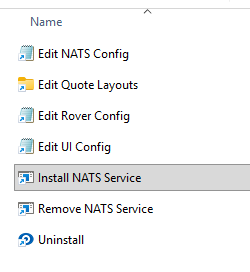
- Right-click Install NATS Service and select Run as administrator
- Click Yes when Windows asks to allow changes
You’ll see the installation progress:
Admin privileges detectedRunning with admin privileges...Setting up JetStream directory...Installing nats-server service...[SC] CreateService SUCCESSService created successfully.Configuring service to restart on failure...Starting nats-server service...Service started successfully============================================================nats-server service has been successfully installed and started============================================================Configuration: C:\Users\...\OptionsRealTime\nats.configJetStream Directory: C:\Users\...\OptionsRealTime\jetstreamClient Port: 4222HTTP Monitoring: http://localhost:8222The service is configured to:- Start automatically on system boot- Restart on failure (5s, 10s, 30s delays)To verify JetStream is enabled, visit:http://localhost:8222/jszPress any key to close the window.
Verify the Service
Section titled “Verify the Service”- Press
Win + R, typeservices.msc, press Enter - Find NATS Server in the list
- Verify the status shows Running
- Verify startup type is Automatic

That’s it! NATS will now start automatically when Windows boots.
Managing the Service
Section titled “Managing the Service”You can control the NATS service from the Services panel:
- Start — Start the service manually
- Stop — Stop the service
- Restart — Stop and start the service
Or from Command Prompt (Run as Administrator):
net start nats-servernet stop nats-serverUninstalling the Service
Section titled “Uninstalling the Service”To remove the NATS service:
- Open the OptionsRealTime → Advanced folder
- Right-click Remove NATS Service and select Run as administrator
What’s Next?
Section titled “What’s Next?”Multiple Accounts →
Add more IBKR accounts to Rover