
Multiple TWS Instances
If you have accounts that require separate TWS logins (e.g., different usernames), you’ll need to run multiple TWS instances on different ports.
When to Use This
Section titled “When to Use This”This applies when:
- You have accounts under different IBKR logins
- Each login requires its own TWS Desktop instance
- You want to consolidate monitoring in one OptionsRealTime setup
Step 1: Configure TWS Ports
Section titled “Step 1: Configure TWS Ports”Each TWS instance needs a unique port. Configure them in TWS:
| TWS Instance | Login | Port |
|---|---|---|
| TWS #1 | user1 | 7496 (default) |
| TWS #2 | user2 | 7497 |
| TWS #3 | user3 | 7498 |
In each TWS:
- Go to File → Global Configuration → API → Settings
- Set the Socket Port to 7496, 7497, 7498, etc.
- Click OK
See TWS Configuration for detailed setup with screenshots.
Step 2: Configure Rover
Section titled “Step 2: Configure Rover”Add each account with its corresponding port:
| Account ID | Host | Port | Client ID |
|---|---|---|---|
| U1234567 | localhost | 7496 | 1 |
| U2222222 | localhost | 7496 | 2 |
| U7654321 | localhost | 7497 | 1 |
| U9999999 | localhost | 7498 | 1 |
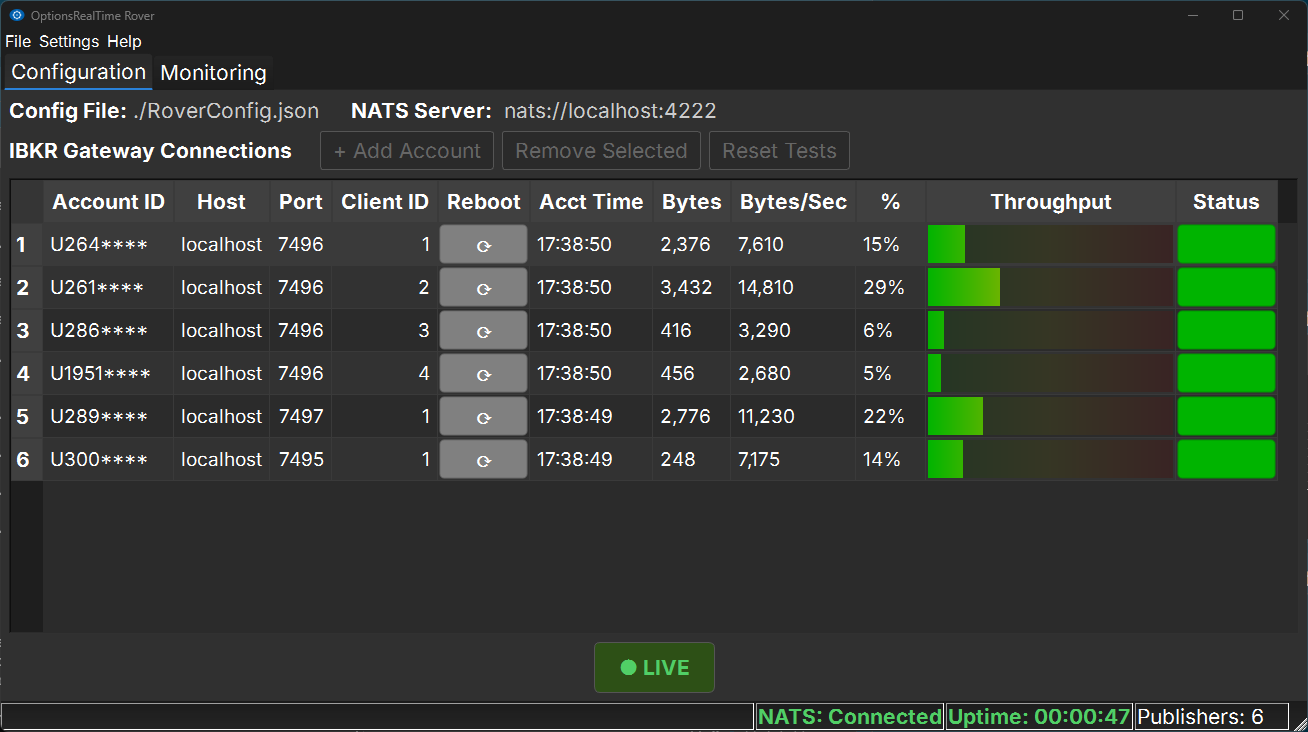
Key Points
Section titled “Key Points”- Different ports for different TWS instances
- Client IDs restart at 1 for each TWS instance
- Same Host — All TWS instances run on localhost
Step 3: Test, Save and Start
Section titled “Step 3: Test, Save and Start”- Ensure all TWS instances are running and logged in
- Test each account connection in Rover
- Go to File → Save to save your configuration
- Click Start Publishers to begin streaming
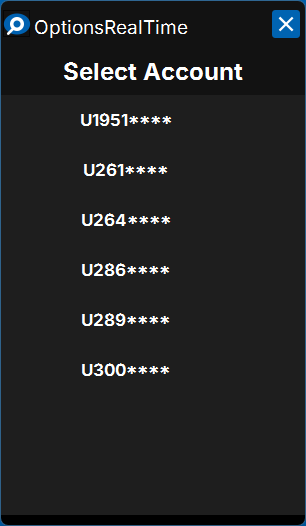
Step 4: Launch OptionsRealTime
Section titled “Step 4: Launch OptionsRealTime”- Double-click OptionsRealTime from the desktop folder
- The Select Account dialog shows all accounts from all TWS instances
- Choose the account you want to view
- Click OK
What’s Next?
Section titled “What’s Next?”Multi-Machine Setup →
Run OptionsRealTime UI on different computers than TWS