
First Run
Now that TWS is configured, let’s start OptionsRealTime and connect to your account.
Step 1: Start NATS
Section titled “Step 1: Start NATS”NATS is the messaging server that OptionsRealTime processes use to communicate.
- Open the OptionsRealTime folder on your desktop
- Double-click Start NATS
A console window will appear showing:
[INF] Starting nats-server[INF] Version: 2.10.16[INF] Starting JetStream[INF] _ ___ _____ ___ _____ ___ ___ _ __ __[INF] _ | | __|_ _/ __|_ _| _ \ __| /_\ | \/ |[INF] | || | _| | | \__ \ | | | / _| / _ \| |\/| |[INF] \__/|___| |_| |___/ |_| |_|_\___/_/ \_\_| |_|[INF][INF] https://docs.nats.io/jetstream[INF][INF] ---------------- JETSTREAM ----------------[INF] Max Memory: 1.00 GB[INF] Max Storage: 50.00 GB[INF] Store Directory: "jetstream"[INF] -------------------------------------------[INF] Listening for client connections on 127.0.0.1:4222[INF] Server is readyLeave this window running.
Step 2: Start Rover
Section titled “Step 2: Start Rover”Rover manages publisher processes for each account and ensures publishers stay available if issues occur (like market data interruptions). Publishers compute real-time analytics from TWS market data and publish them through NATS, where any number of processes can subscribe.
- In the OptionsRealTime folder, double-click Rover
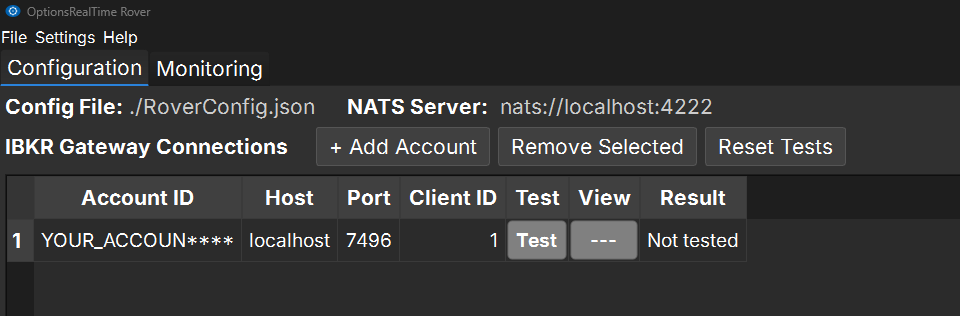
- Rover opens with a row pre-filled with defaults (localhost, port 7496, client ID 1)
Step 3: Enter Your Account ID
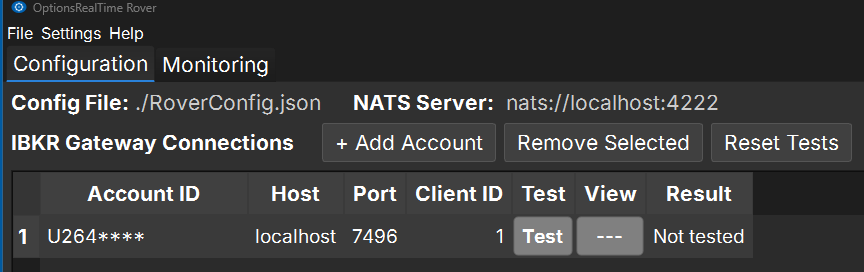
Section titled “Step 3: Enter Your Account ID”- Click on the Account ID field
- Enter your IBKR account ID (e.g.,
U1234567)
Step 4: Test and Save
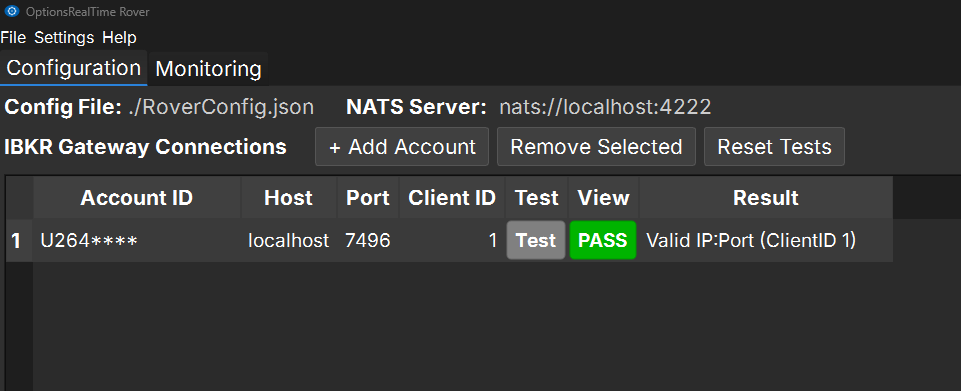
Section titled “Step 4: Test and Save”- Click the Test button next to your account
- You should see PASS if the connection is successful
- Go to File → Save to save your configuration
Step 5: Activate License
Section titled “Step 5: Activate License”When you click Start Publishers for the first time, you’ll see:
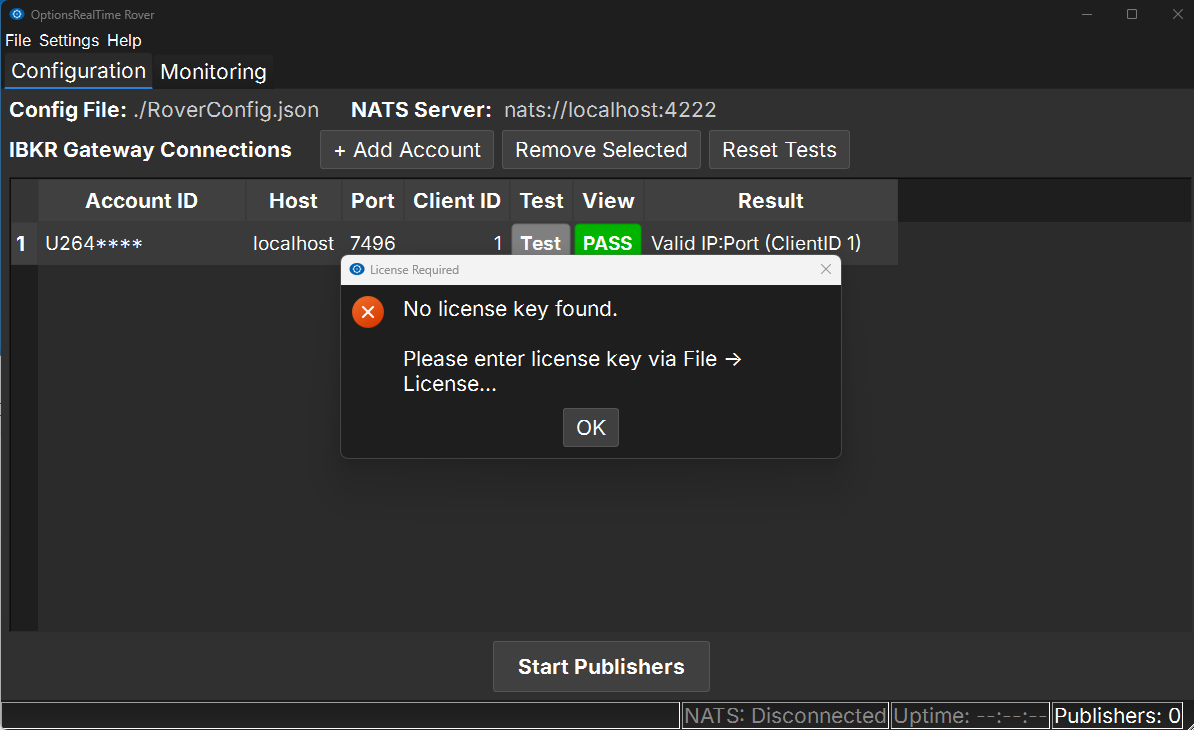
Click OK, then go to File → License…:
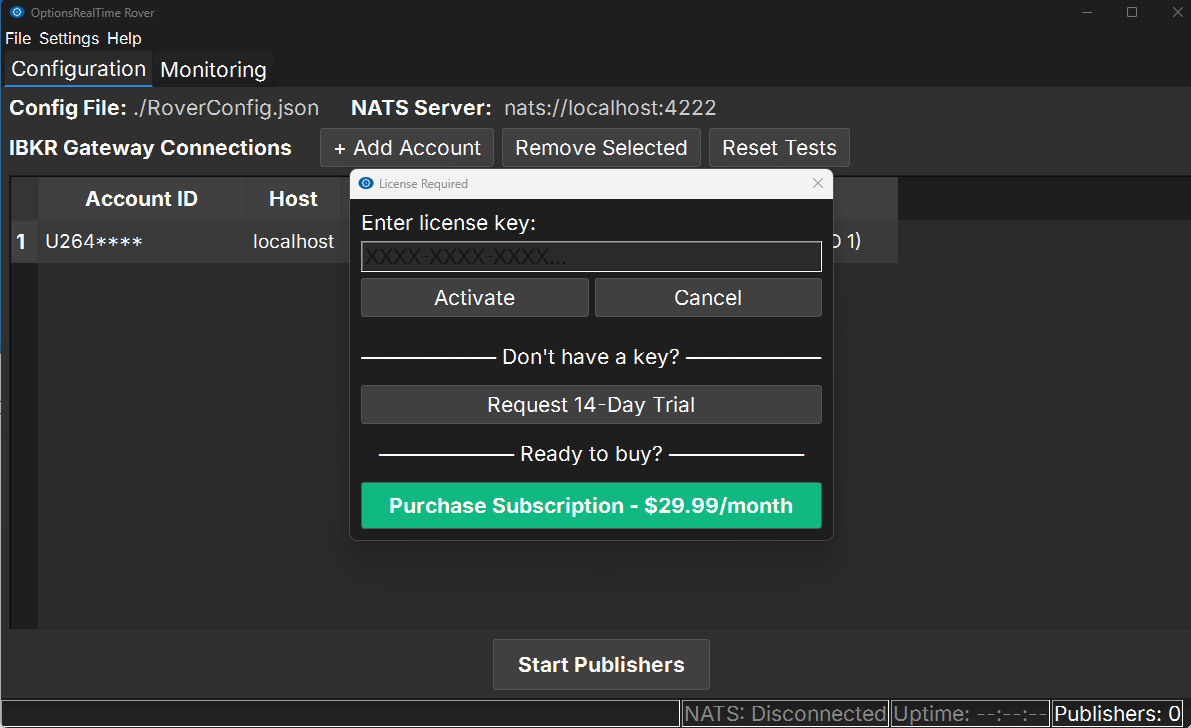
Click Request 14-Day Trial:
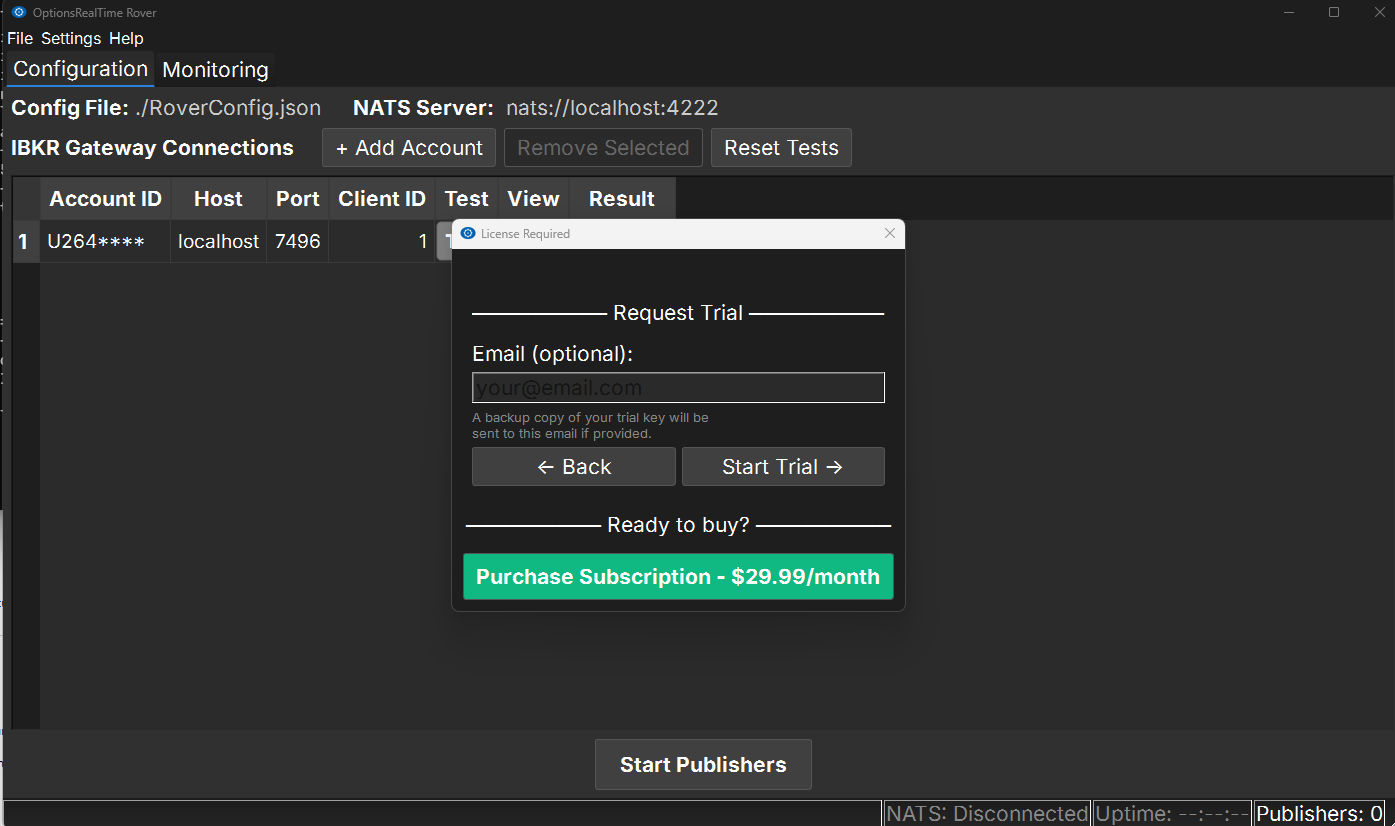
Enter your email (optional - for backup copy of trial key) and click Start Trial →:
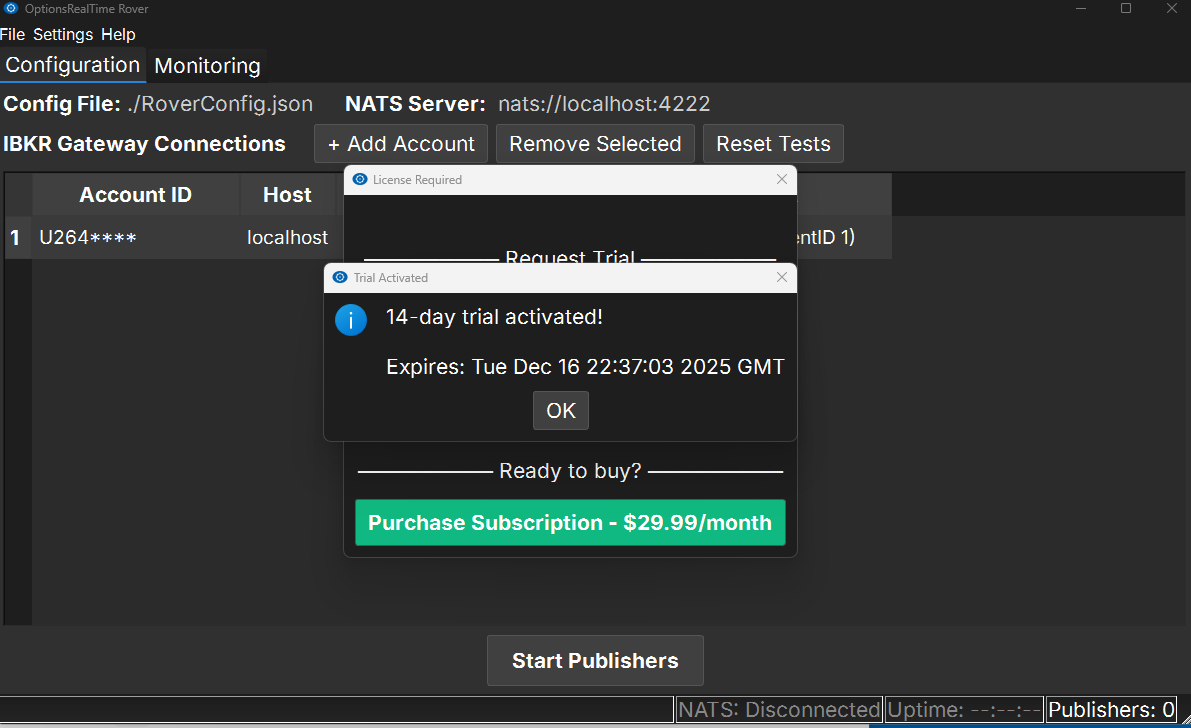
Click OK and you’re ready to publish.
Step 6: Start Publishers
Section titled “Step 6: Start Publishers”Once the connection test passes:
- Click the Start Publishers button
- Rover will begin streaming data from TWS
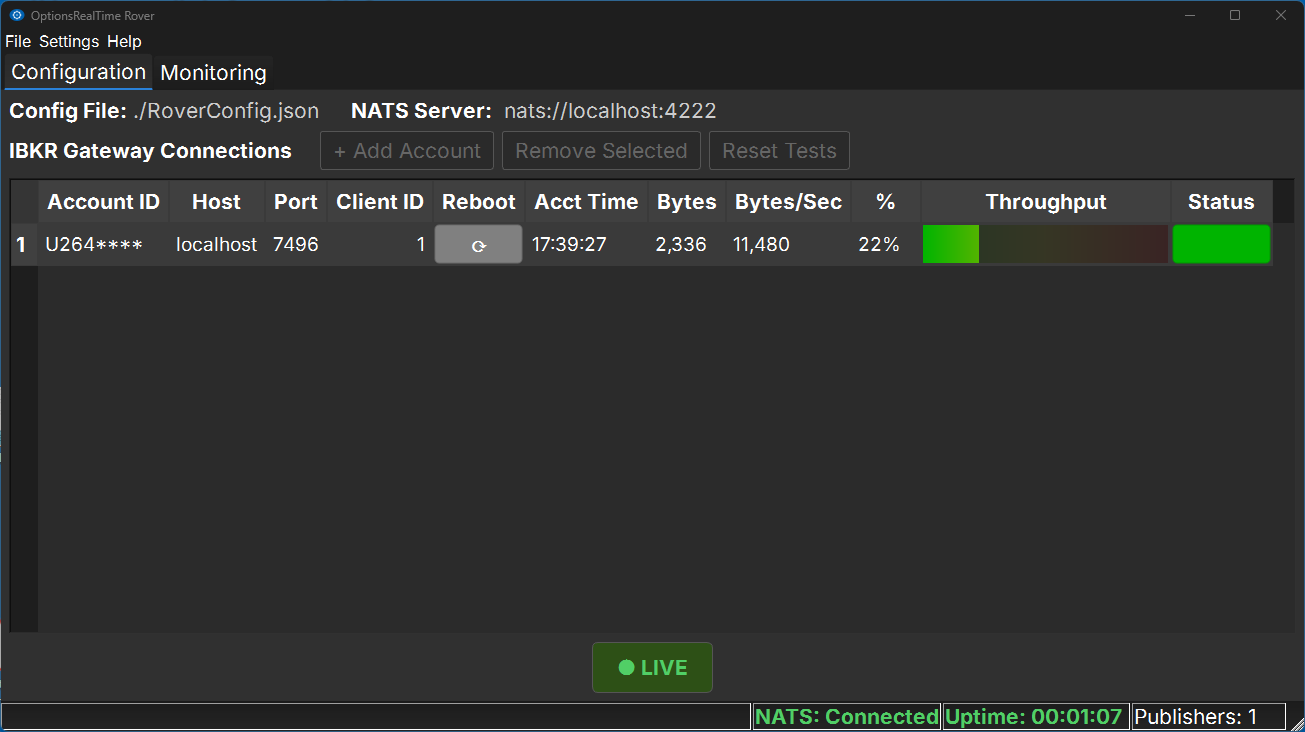
Step 7: Launch OptionsRealTime
Section titled “Step 7: Launch OptionsRealTime”- In the OptionsRealTime folder, double-click OptionsRealTime
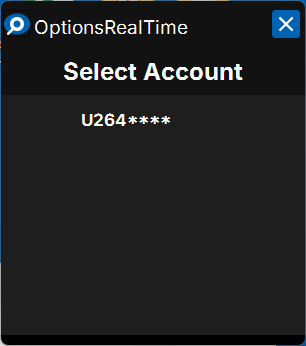
- The Select Account dialog will appear
- Choose your account from the dropdown
- Click OK
Step 8: View Your Portfolio
Section titled “Step 8: View Your Portfolio”OptionsRealTime will now:
- ✅ Load all your positions from TWS
- ✅ Subscribe to live market data for all options symbols
- ✅ Subscribe to underlying symbols for those options
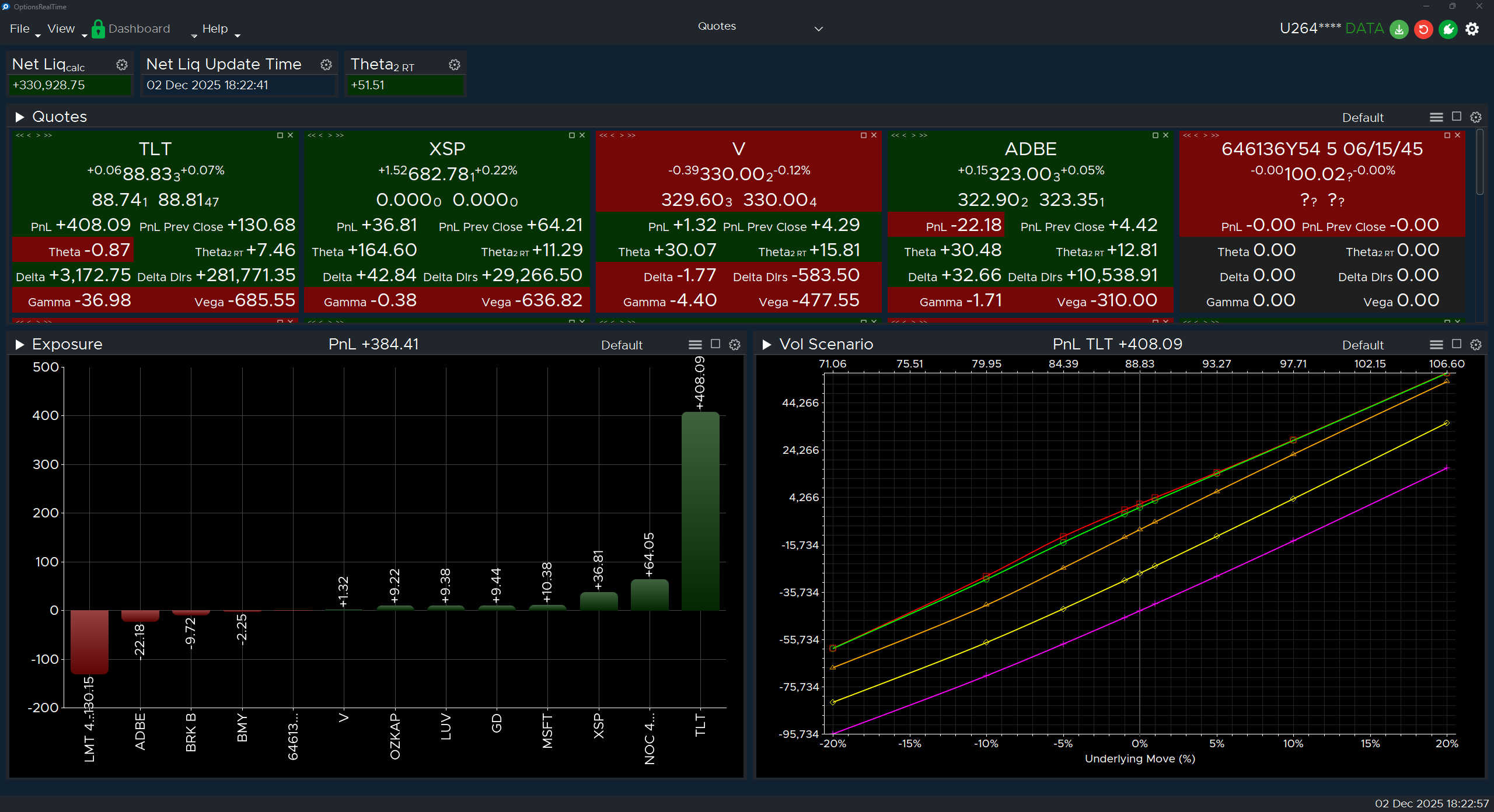
On first launch, you’ll see a default layout. OptionsRealTime includes several pre-built layouts to get you started.
You’re Done! 🎉
Section titled “You’re Done! 🎉”You now have live portfolio monitoring with real-time Greeks, P&L, and market data.
Next Steps
Section titled “Next Steps”Learn about the Dashboard and Panels →
Every layout or Dashboard can be custom tailored to your workflow by adding panels such as charts, reports, quotes, metrics or tables.
NATS as a Service →
Run NATS automatically at startup
Multiple Accounts →
Add more IBKR accounts