
PnL Charts
This panel contains charts of aggregated PnL plotted against time throughout the trading day. Additionally, the last price of the underlying is plotted. The standard view has PnL on the left axis and last price on the right axis. A quote chip in the upper portion of each chart shows the last price, size, change, and percent change.
Similar to Portfolio Metrics and Quotes panels, individual charts are grouped in a flow container. As the panel is resized, chart tiles wrap and reflow within the container, each maintaining uniform width and height. Tiles can be reordered and the grouping will be saved. When dragging a tile, white borders appear around surrounding tiles indicating where the selected tile will be inserted.
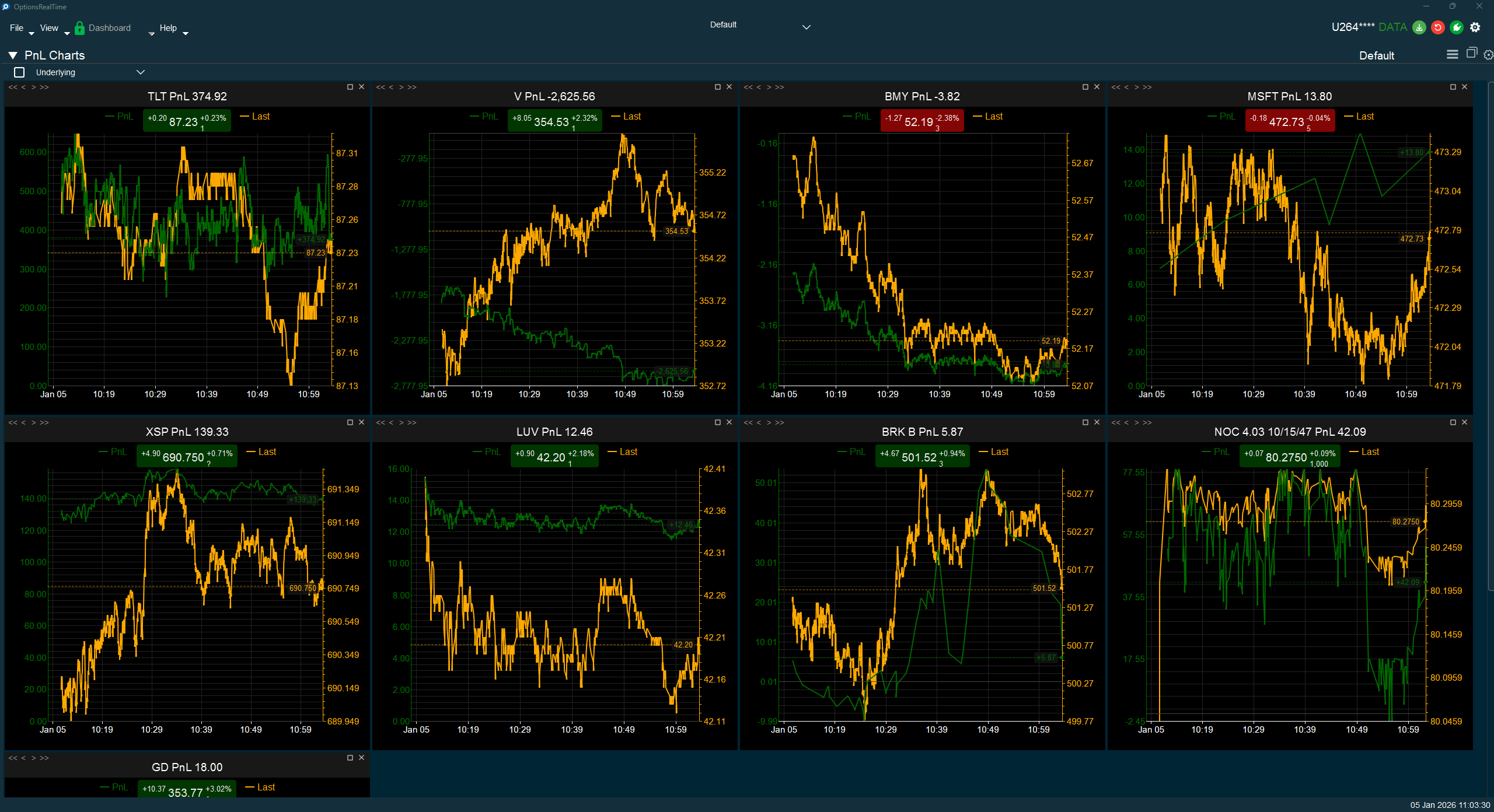
Chart Interaction
Section titled “Chart Interaction”Supports zooming and panning:
- Left-click drag on titlebar: Drag chart to rearrange within the container
- Ctrl+Shift+Mousewheel: Zoom all charts in the container simultaneously
- Ctrl+Mousewheel: Zoom the chart under the cursor
- Left-click drag on chart: Draw a zoom rectangle, release to zoom to that area
- Right-click drag: Pan the chart
- Double-click: Revert to default view
- Refresh button (upper right): Revert to default view
Display Settings
Section titled “Display Settings”In the upper right corner of the PnL Charts is a gear icon for settings.
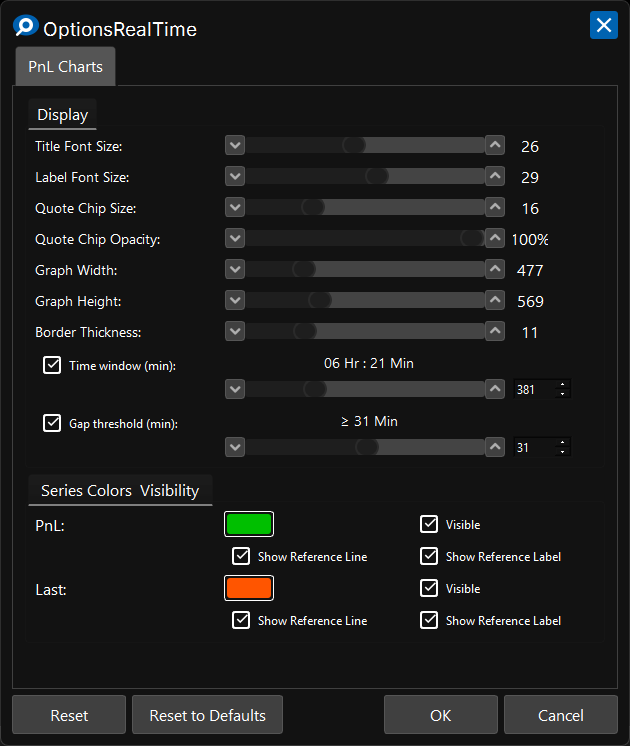
Display
Section titled “Display”- Title Font Size: Font size for chart titles
- Label Font Size: Font size for axis labels
- Quote Chip Size: Font size for the quote chip overlay
- Quote Chip Opacity: Opacity of the quote chip background
- Graph Width: Width of each chart tile in pixels
- Graph Height: Height of each chart tile in pixels
- Border Thickness: Border thickness around each tile
Time Window
Section titled “Time Window”- Time window (min): When enabled, limits the chart to display only the specified number of minutes (shown as hours and minutes)
Gap Threshold
Section titled “Gap Threshold”- Gap threshold (min): When enabled, inserts a visual gap in the chart when data points are separated by at least the specified minutes
Series Colors & Visibility
Section titled “Series Colors & Visibility”- PnL: Color for the PnL line, with options to show/hide the series, reference line, and reference label
- Last: Color for the last price line, with options to show/hide the series, reference line, and reference label
Container Controls
Section titled “Container Controls”Each tile in the container has controls in the upper corners.
Left Corner (Reorder)
Section titled “Left Corner (Reorder)”- <<: Move tile to front of container
- <: Move tile left
- >: Move tile right
- >>: Move tile to end of container
Right Corner
Section titled “Right Corner”- ⓘ: Underlying Summary — hover to display a live popup of aggregate metrics for the underlying (see below)
- +: Super Maximize / Restore — toggles tile to fill the entire Dashboard or restore to original size
- ☐: Maximize / Restore — toggles tile to fill its panel or restore to original size
Underlying Summary Popup
Section titled “Underlying Summary Popup”Hovering over the ⓘ icon displays a live popup showing aggregate exposure metrics for that underlying. Values update in real time as market data ticks in — the popup is not a snapshot but a continuously refreshing view.
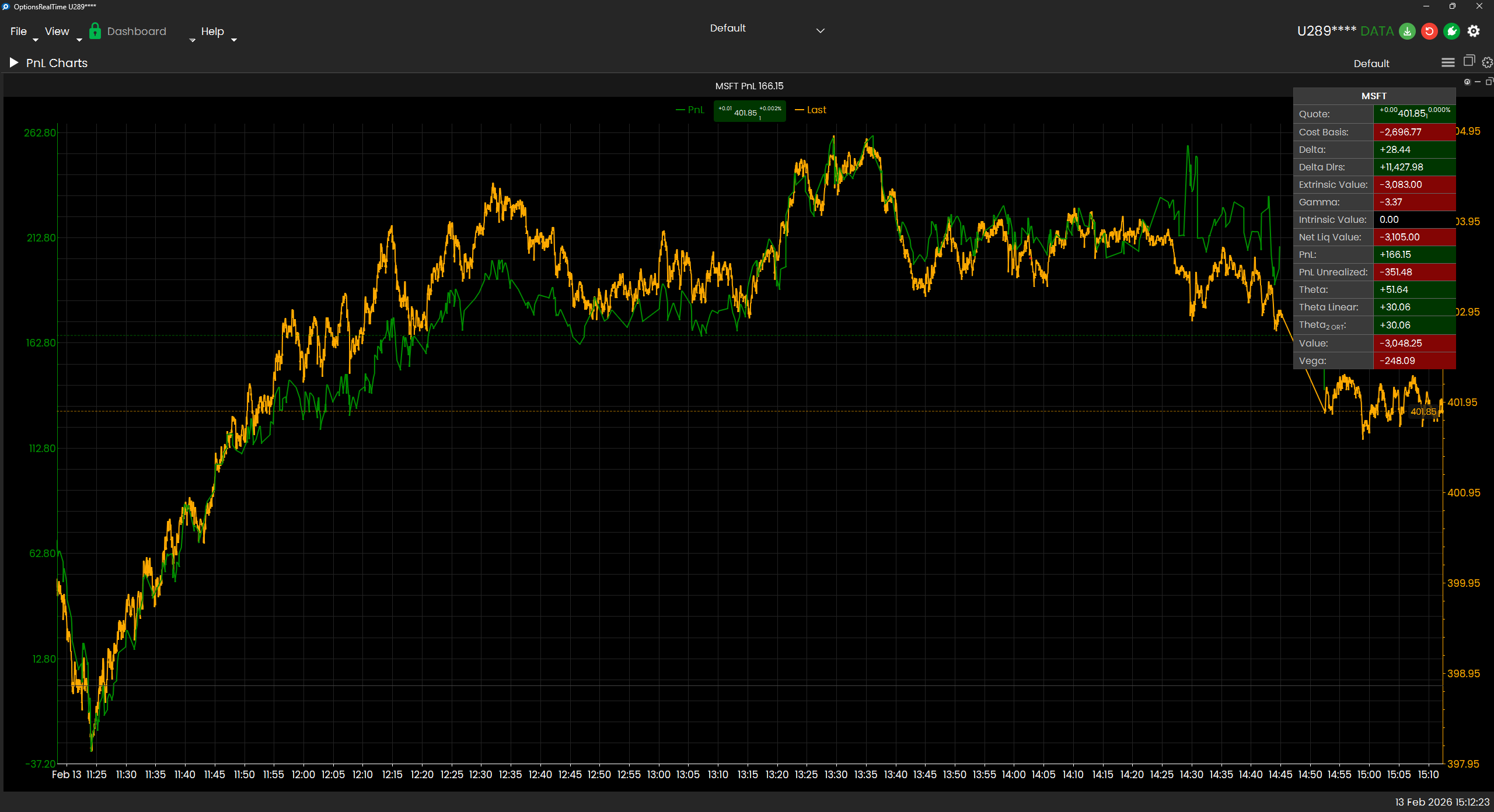
The popup includes the underlying’s quote (bid, ask, last, change) and a configurable set of aggregate fields such as Delta, Delta $, Theta, Vega, Gamma, Cost Basis, PnL, Value, Intrinsic/Extrinsic Value, and more. All values are summed across every position (options and stock) for that underlying, matching the Exposure table.
Customizing Popup Fields
Section titled “Customizing Popup Fields”The fields displayed in the popup are configurable per saved perspective. To customize, add an infoPopupFields array to the PnL Charts perspective’s JSON file, listing the desired Field IDs by name. For example:
{ "infoPopupFields": [ "COST_BASIS", "DELTA", "DELTA_DLRS", "EXTRINSIC_VALUE", "GAMMA", "INTRINSIC_VALUE", "NET_LIQ_VALUE", "PNL", "PNL_UNREALIZED", "THETA", "THETA2_ORT", "THETA_LINEAR", "VALUE", "VEGA" ]}Only fields belonging to the Exposure table are valid. Unrecognized or invalid field names are silently skipped. If the key is absent, a default set of fields is used. See the Field Reference for the complete list of available Field IDs.
Control Panel
Section titled “Control Panel”In the upper left corner of the PnL Charts, next to its label, is a chevron which can be clicked to toggle the visibility of an additional control panel. The control panel contains:
- A checkbox to toggle selection of all underlyings
- A listbox of selectable underlyings